
On this page
Raids always look the same. Within a few minutes, dozens of brand-new accounts with names like user_48213 and no avatar join your server and start spamming links or mass mentions. Manual moderation can't keep up: by the time someone on staff wakes up, the channels are a mess and some members have already left.
The good news: most raids can be stopped automatically, before a spammer sends a single message. In this guide you will combine Discord's built-in protection with MurFFy's JoinGuard module, which checks every new member the moment they join.
Quick answer: how to protect a Discord server from raids
- Set Discord's verification level to at least Medium and turn on AutoMod.
- Create a
Quarantinerole that can only see one channel. - In the MurFFy dashboard, turn on JoinGuard and pick a log channel.
- Add a condition: account younger than 7 days → give the
Quarantinerole and send a DM. - Add a spam bot condition: generated username + default avatar → kick.
Three layers of protection
No single setting stops everything. Layered protection works best:
- Joining: who can join and talk at all. This is Discord's verification level plus JoinGuard filters.
- The first minutes: what a new member can do before anyone checks them. This is the quarantine role and channel permissions.
- Message content: what happens if a spammer does start typing. This is Discord's AutoMod and your staff.
Step 1. Discord's built-in safety settings
Start with what Discord gives you for free. You'll find it in Server Settings → Safety Setup (on some servers the section is called Moderation).
- Verification level. Medium requires an account older than 5 minutes with a verified email. High also makes people wait 10 minutes on the server before their first message. For most servers, Medium is the right balance.
- AutoMod. Turn on blocking of mention spam and suspicious links. AutoMod works on message content, so it complements join filters well.
- Pause invites. During an active raid you can temporarily pause new joins from the server's safety actions. It's the emergency brake when everything else fails.
- 2FA for moderators. Require two-factor authentication for anyone with moderation permissions. A hijacked admin account is worse than any raid.
Step 2. Create a quarantine role
Quarantine is a role for new, suspicious accounts. Instead of kicking them straight away, you give them access to a single channel, such as #verification, and a moderator removes the role after a quick chat.
- Create a
Quarantinerole with no permissions. - In every category, deny this role View Channel. Doing it on categories is fastest, because channels inherit permissions.
- Keep one channel, like
#verification, where quarantined members can talk to staff. - Drag the MurFFy bot role above the quarantine role so the bot can assign it.
This is safer than kicking: a real person with a new account doesn't lose access forever, and a raid still can't do anything.
Step 3. Turn on JoinGuard and set a log channel
JoinGuard checks every member at the moment they join. It works with conditions: each condition has filters (who it applies to) and actions (what to do).
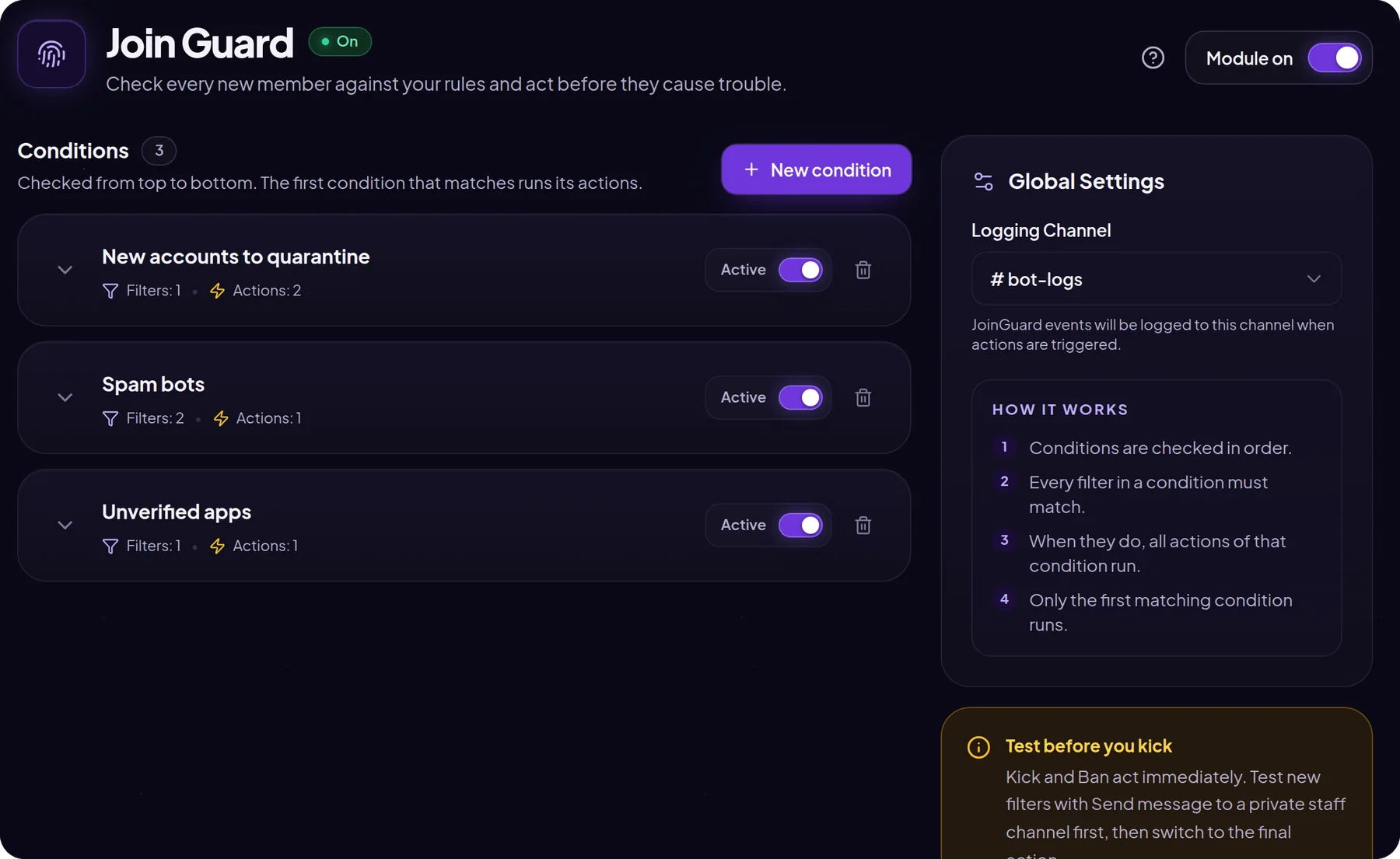
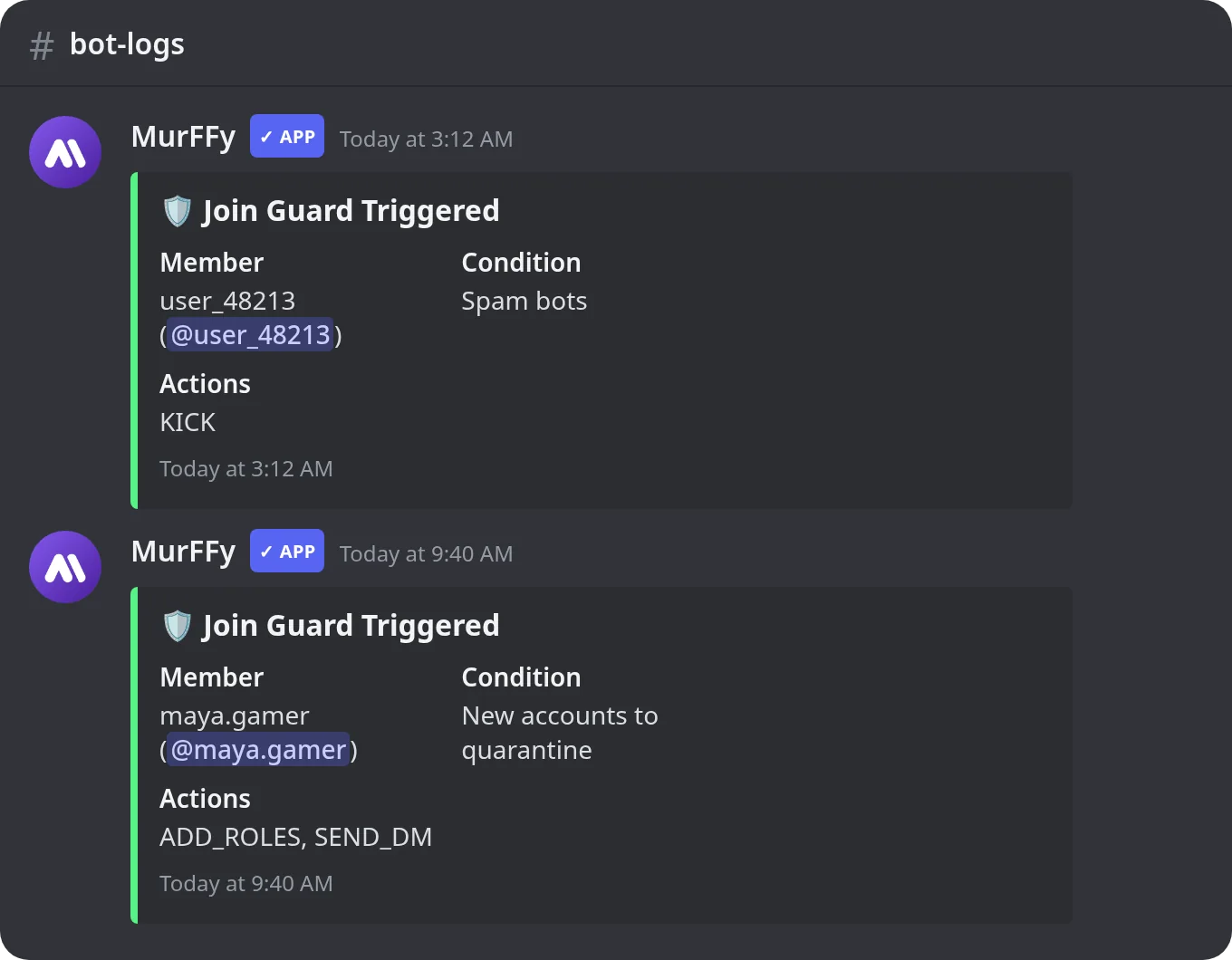
In the dashboard, open Moderation & security → Join Guard, turn the module on and choose a log channel, such as a private #bot-logs. Every action is posted there with who it affected and which condition fired.
The rules are simple:
- Conditions are checked in order, from the top.
- All filters in a condition must match.
- When they match, every action in that condition runs.
- Only the first matching condition runs.
So put the strictest conditions (like kicking bots) at the top and softer ones (quarantine) below them.
Step 4. Filters and actions
| Filter | Matches when |
|---|---|
| Account younger than | The account was created recently, e.g. less than 7 days ago. The best raid filter. |
| Account older than | The account has existed longer than the set time. Useful combined with other filters. |
| Generated username | The name looks automatic: user_043, user284 or only digits. |
| Default avatar | The account has no profile picture of its own. |
| Unverified bot | An unverified application joins. |
| Server tag in nickname | The nickname contains a chosen tag, e.g. a rival server's tag. |
| Action | What it does |
|---|---|
| Add roles | Gives up to 5 roles, e.g. Quarantine. |
| Send DM | Sends a direct message to the new member. |
| Send message | Posts to a chosen channel, e.g. pinging moderators. |
| Warn | Issues a warning. |
| Kick | Removes the member from the server (they can rejoin). |
| Ban | Bans the member. |
Step 5. Three rules you can copy
1. Unverified bots → ban. Filter Unverified bot, action Ban. Nobody should add bots without the admins knowing.
2. Spam bots → kick. Filters Generated username and Default avatar, action Kick with a reason. Using both filters together cuts false positives: real people rarely have an automatic name and no avatar at the same time.
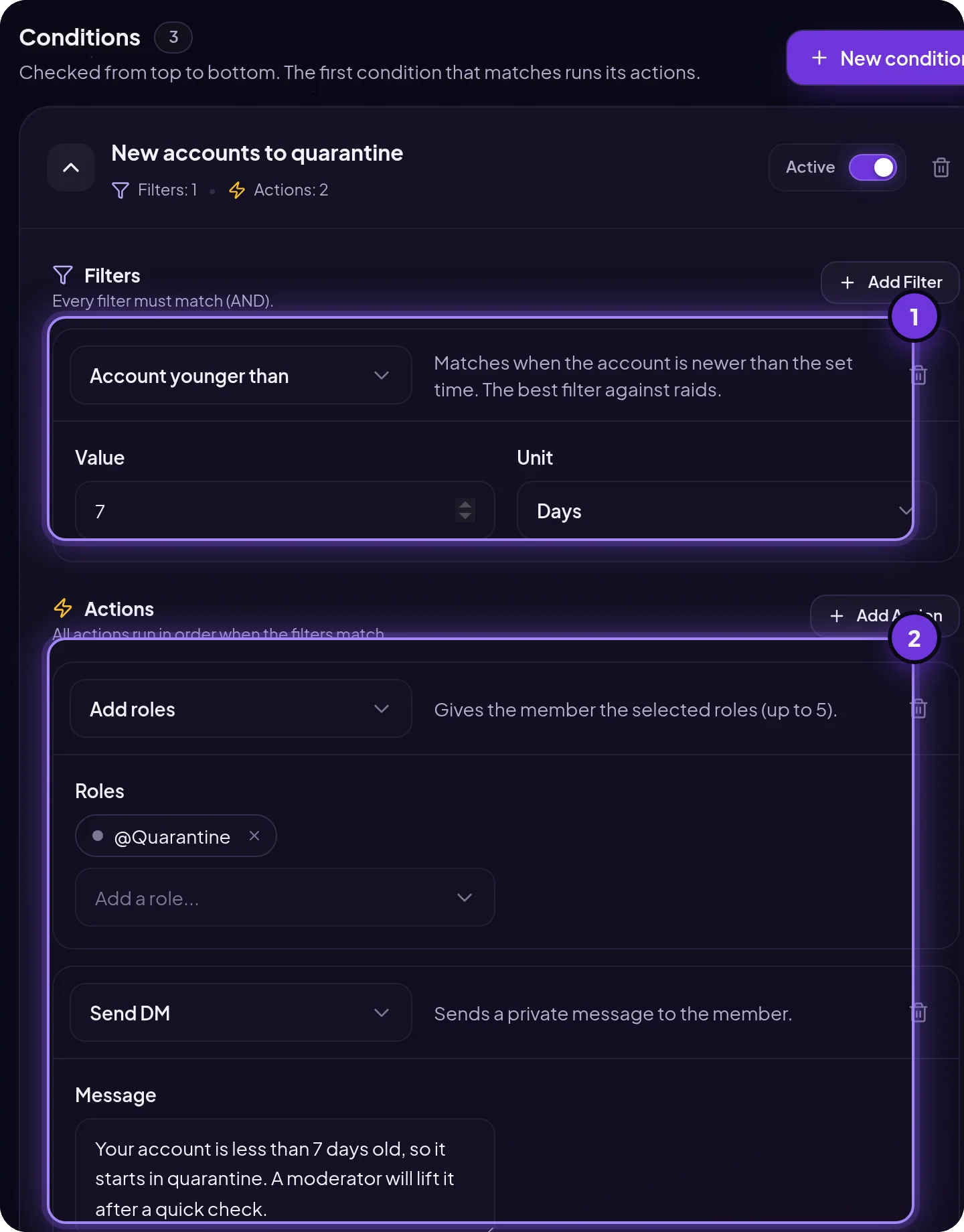
3. New accounts → quarantine. Filter Account younger than 7 days, actions Add roles: Quarantine and Send DM. An example message:

Test before you kick. Kicks and bans happen instantly. Set up a new filter with the Send message action to a private staff channel first, and watch who it catches for a day or two. Only then switch it to the final action.
What to do when a raid is happening right now
- Pause invites in Discord's safety actions.
- Raise the verification level to High or Highest for a while.
- Tighten a JoinGuard condition, e.g. account younger than 30 days → kick, and move it to the top of the list.
- Clean up messages with
/purgein the affected channels. - Afterwards, restore normal settings and read the JoinGuard logs to see how the spammers got in. Invite tracking helps with that too.
FAQ
Is JoinGuard free?
Yes. Conditions, filters, actions and logs are on the free plan. Premium raises the condition limit.
Will JoinGuard kick real people?
It can, if your filters are too strict. That's why quarantine is better than kicking for new accounts, and why kick filters should come in pairs, like generated username plus default avatar.
How is JoinGuard different from Discord AutoMod?
AutoMod checks message content. JoinGuard checks the account when it joins, before it writes anything. Use both.
How do I set up verification on Discord?
The simplest verification is a starter role that only sees the rules channel, removed or swapped once someone accepts them. You can also send new accounts to quarantine with JoinGuard. Starter roles live in the Join Role module.
What's next
A safe server also needs a clean way to report problems. Set up a ticket system so members can reach staff privately, and walk through the whole Discord server setup checklist.
More on server protection: Discord anti-raid bot.