On this page
You run a contest, "whoever invites the most people wins Nitro", and a week later it turns out the winner invited twenty empty accounts that left the next day. Or you pay for a TikTok promotion and have no idea whether a single person came from it. Both cases need the same thing: invite tracking.
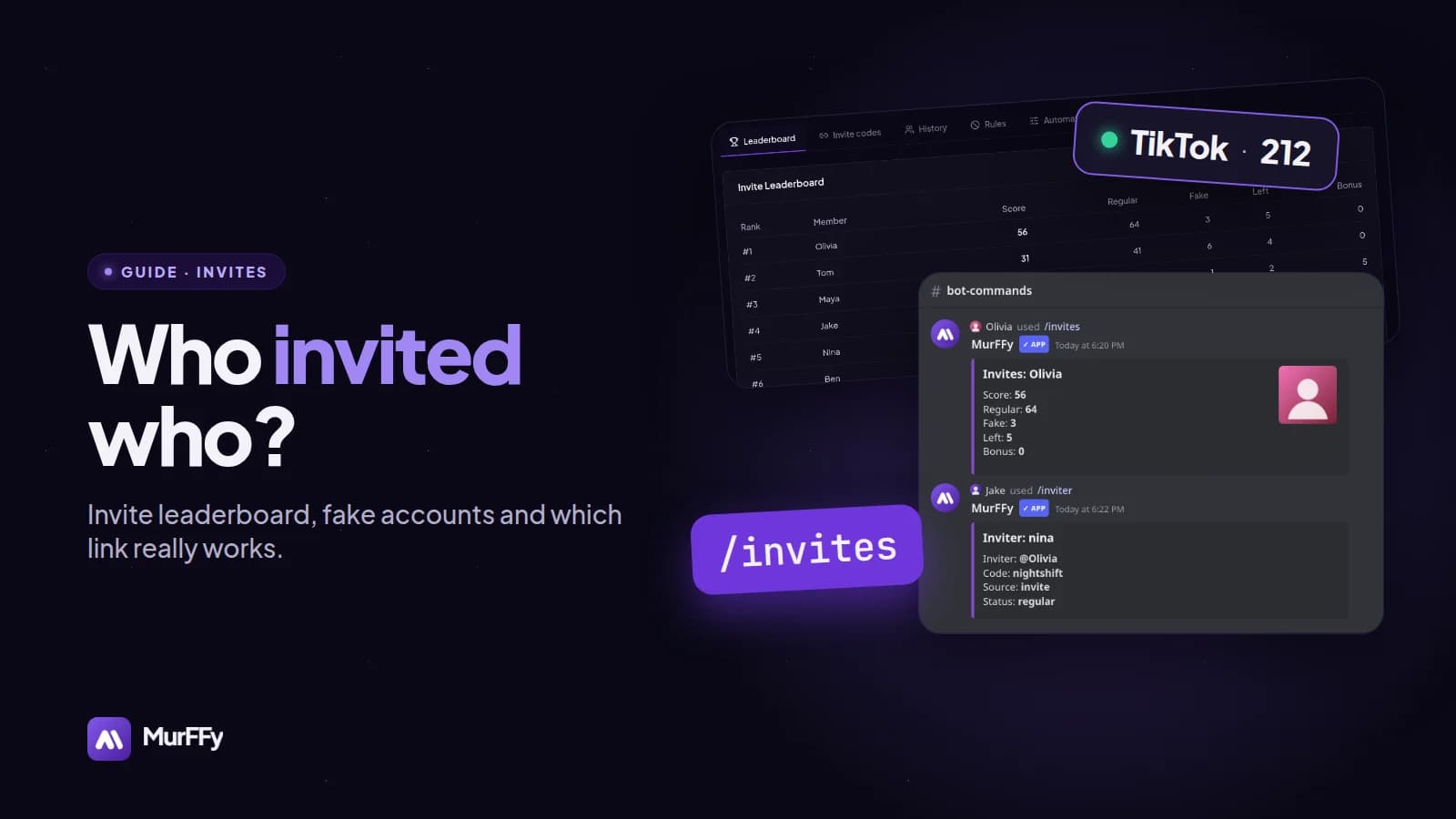
In this guide you will turn on MurFFy's invite tracker, see who invited who, and set up counting so fake accounts don't wreck the leaderboard.
Quick answer: how to see who invited someone on Discord
- Give the MurFFy bot the Manage Server permission. Without it, the bot can't read invites.
- In the dashboard, open Community → Invites and turn the module on.
- Check the fake account threshold (by default, accounts younger than 3 days).
- Label your links, for example TikTok or YouTube.
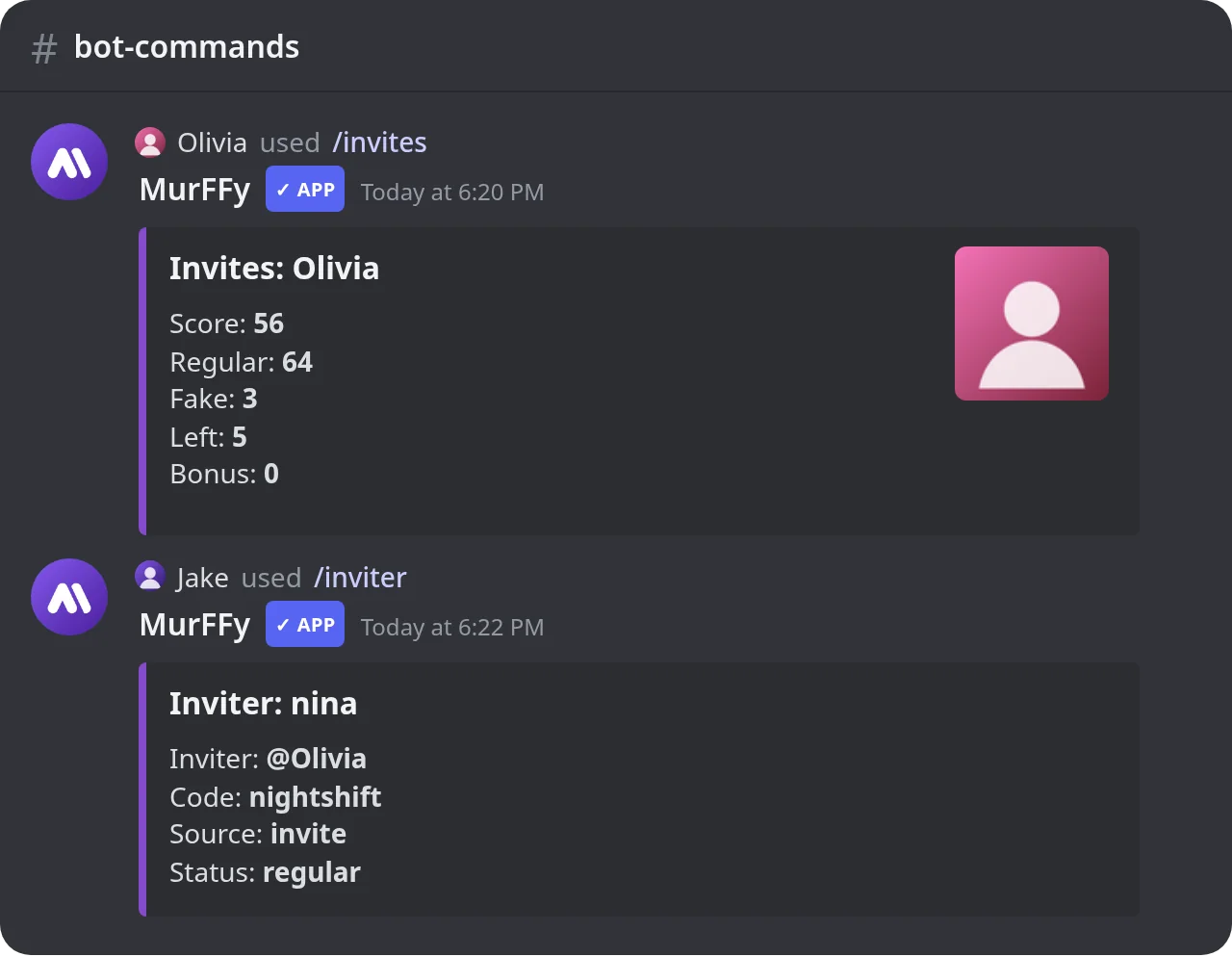
- Check the leaderboard in the dashboard or with
/invitesand/inviter.
Why Discord doesn't show this on its own
Under Server Settings → Invites, Discord lists your links and their use counts. It doesn't show who joined through a link, or whether they are still on the server. An invite tracking bot does something simple: it remembers each link's use count and, on every join, checks which counter went up. That tells it which link and which inviter brought the new member.
Step 1. Turn on tracking and set the counting rules
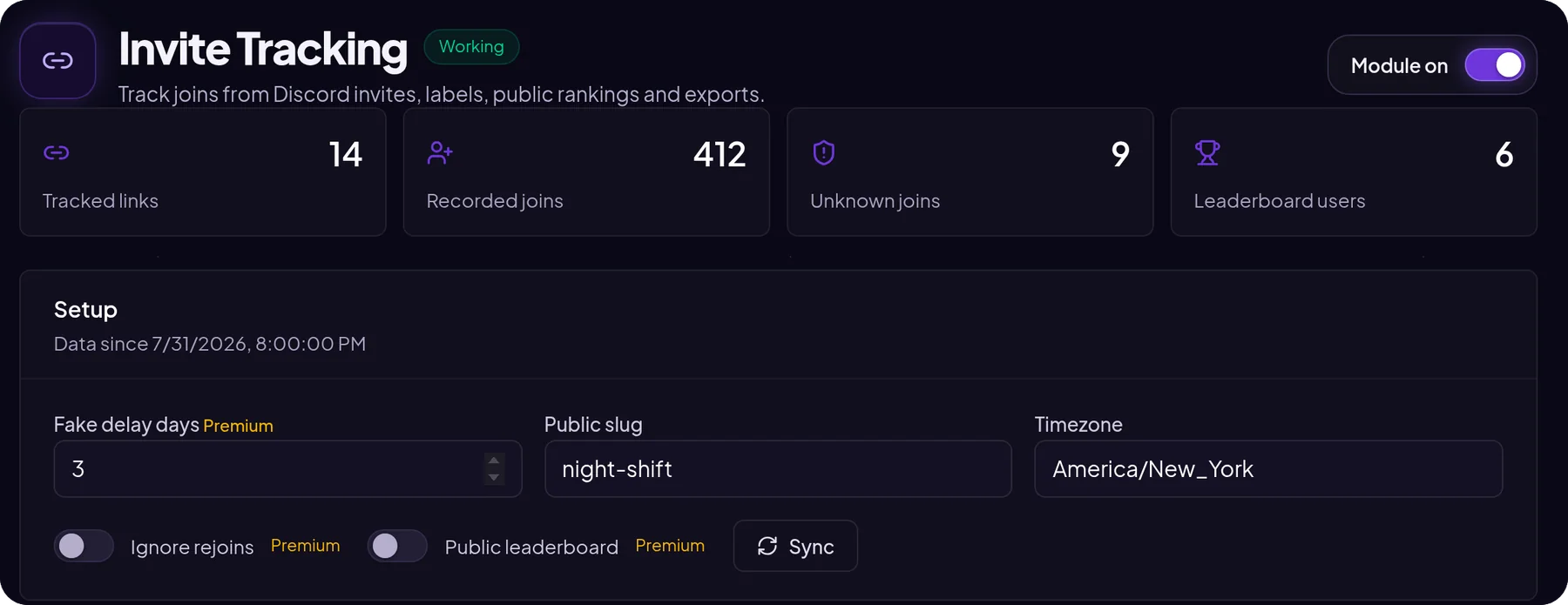
Once the module is on, you see four numbers: how many links are tracked, how many joins were recorded, how many joins couldn't be attributed (for example through a vanity URL or a bot adding someone) and how many people are on the leaderboard.
The key settings:
- Days until counted as fake. If the invited account is younger than this, the invite counts as fake. On the free plan the threshold is 3 days. With Premium you set your own, such as 7 days.
- Ignore rejoins (Premium). Someone who left and came back doesn't count twice.
- Time zone: sets the report periods.
- Sync: pulls the current invite state from Discord, for example after enabling the module on an existing server.
Tracking counts joins from the moment the module is turned on. Earlier invites can't be reconstructed, because Discord doesn't keep that history.
Step 2. Read the leaderboard fairly
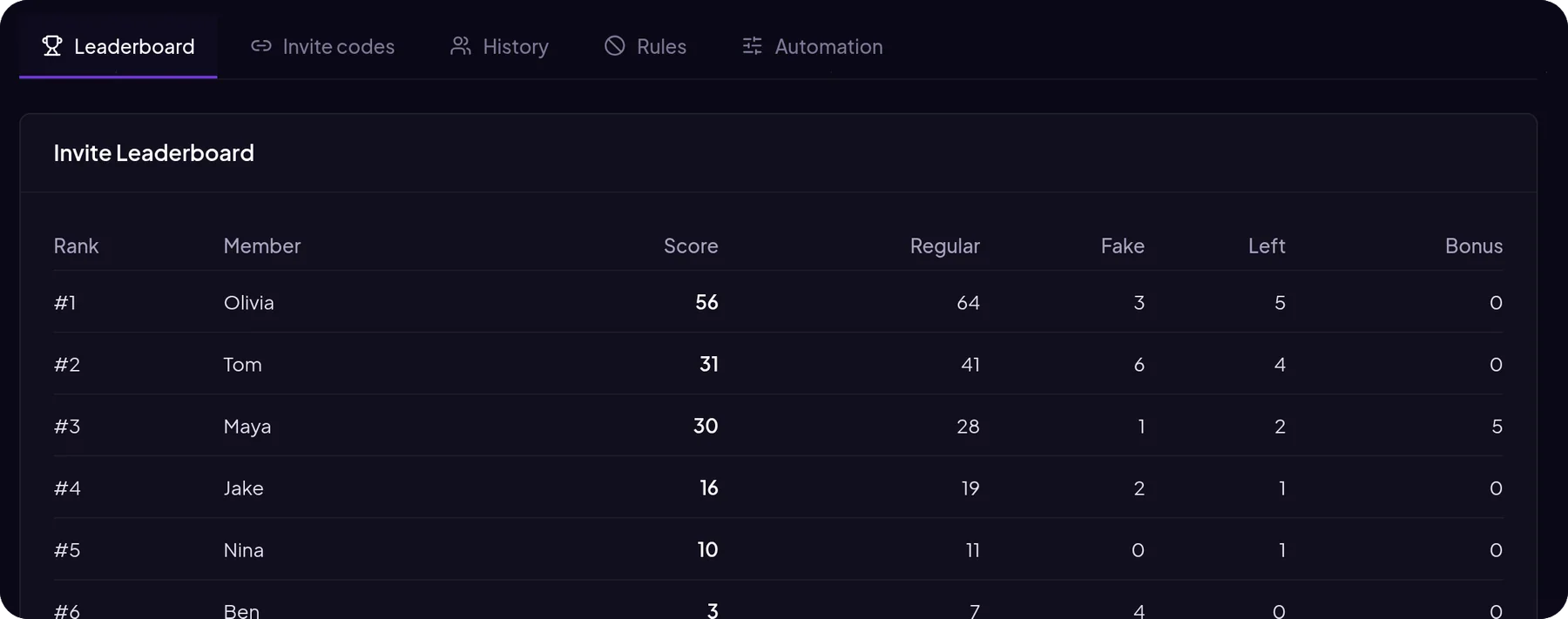
Each person on the leaderboard has five numbers:
| Column | Meaning |
|---|---|
| Regular | Real people who joined through their link |
| Fake | Accounts younger than your threshold |
| Left | People who have since left the server |
| Bonus | A manual adjustment by staff |
| Score | Regular − fake − left + bonus |
The field below the table lets you adjust a score, for example adding a bonus for a contest win or removing points for invite farming. You only need the user ID, the amount and a reason.
Step 3. Find out which promotion works
This is the most underrated part of invite tracking. Create a separate link for every place you promote the server and give it a label:
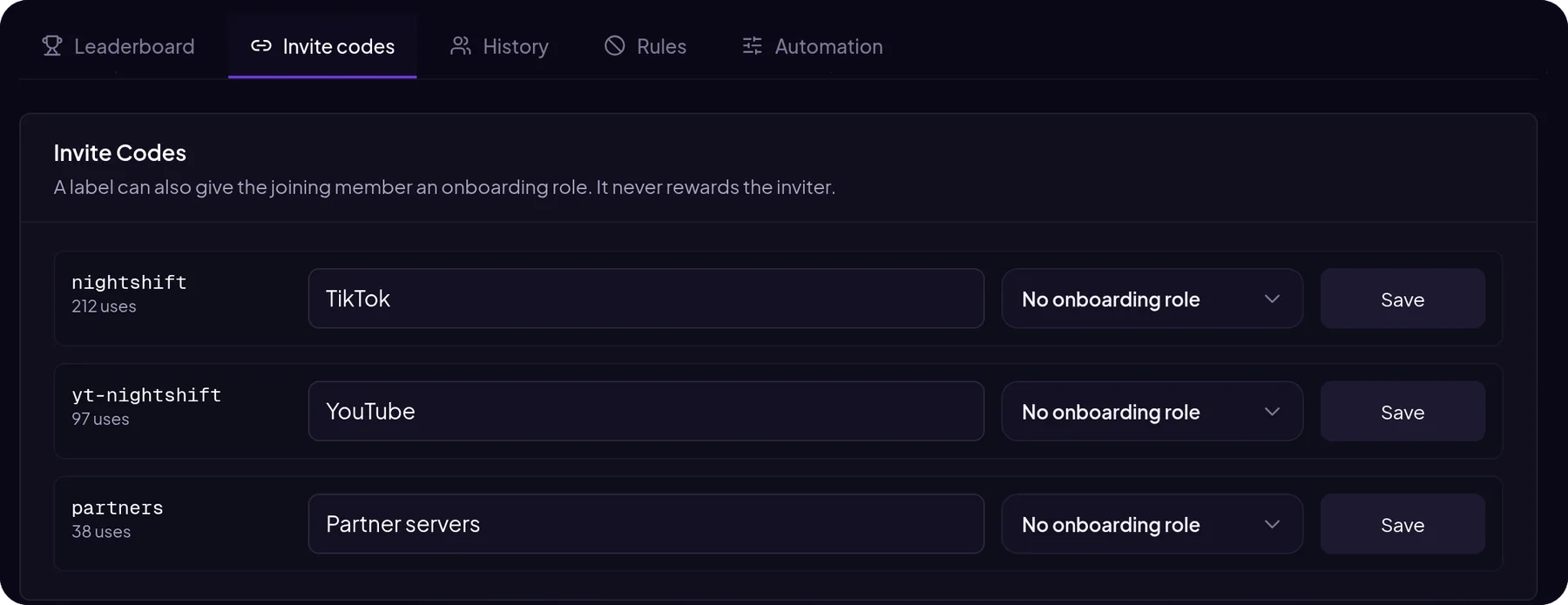
discord.gg/nightshift→ TikTokdiscord.gg/yt-nightshift→ YouTubediscord.gg/partners→ Partner servers
After a week you know where your time is well spent and where it isn't. A label can also give a starter role to everyone who joins through that link, such as a Partner role for people from partner servers.
The History tab lists every join: who came, through which link, when, and whether it counted as regular, fake or a rejoin.
Step 4. Rules, reports and export
- Rules: exclude chosen inviters or roles from the leaderboard, such as staff who hand out official links.
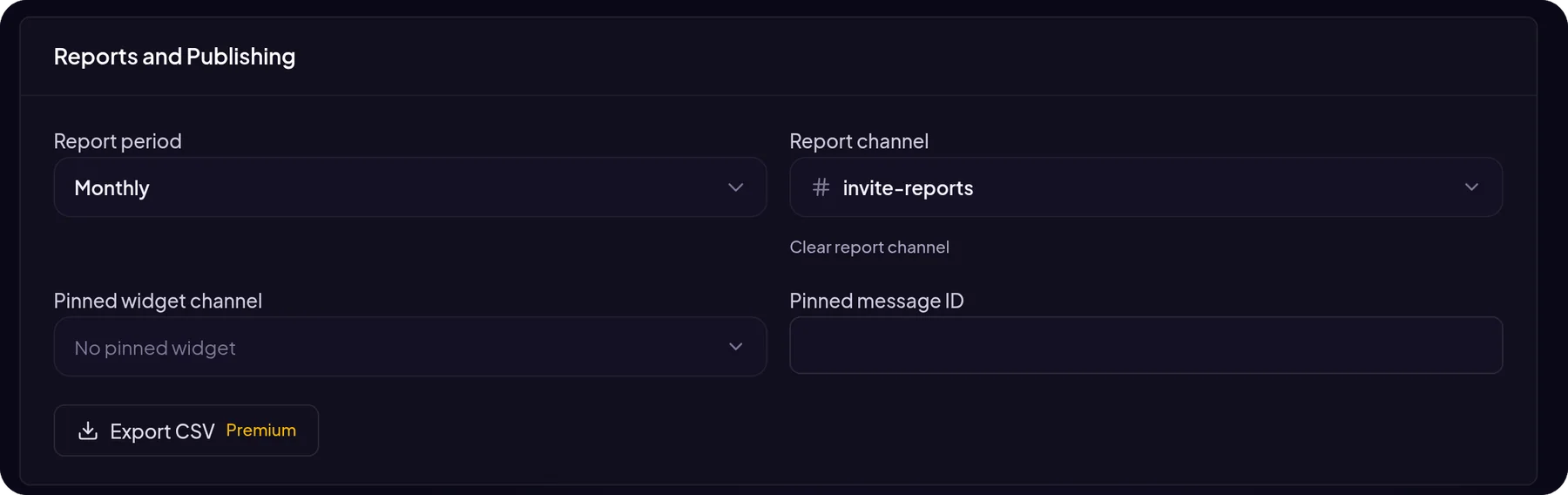
- Reports: the bot posts a recurring summary to a chosen channel. Monthly on the free plan, weekly as well with Premium.
- Premium: a public leaderboard page, a pinned leaderboard widget in a channel and CSV export.
How to run a fair invite contest
- Announce the rules up front: the score counts, not link uses.
- Check the fake account threshold. The default 3 days is enough for most contests. With Premium you can raise it to 7 days and ignore rejoins.
- Wait a few days after the contest ends before naming a winner. People who left get subtracted from the score.
- Combine it with bot protection. JoinGuard can kick accounts with generated names before they ever reach the leaderboard.
- Reward with a role, not only a prize. An Ambassador role lasts longer.
Commands
| Command | What it does |
|---|---|
/invites | Invite stats for you or a chosen member |
/inviter | Who invited a chosen member and through which link |
/invited-list | Members invited by a given person |
/leaderboard | Server leaderboard, including by invites |
/invite-admin | Sync and adjustments for staff |
FAQ
Can I see who invited someone before the bot was added?
No. Discord doesn't store that information, so tracking starts when you turn the module on.
Why are some joins "unknown"?
Those are joins that can't be tied to a specific link, for example through the server's vanity URL, a bot adding someone, or several people joining in the same second.
Is invite tracking free?
Yes. The leaderboard, link labels, history, rules, monthly report and commands are on the free plan. A custom fake threshold, ignoring rejoins, weekly reports, the public leaderboard, the pinned widget and CSV export need Premium.
What's next
Once you know where new members come from, make sure they stay: welcome messages with a starter role and a leveling system make the biggest difference.