On this page
As a server grows, questions for staff start getting lost. Someone asks in #general, someone else DMs a moderator, and a third person waits two days because nobody saw their message. Tickets fix this: every request gets its own private channel that only the member and support can see.
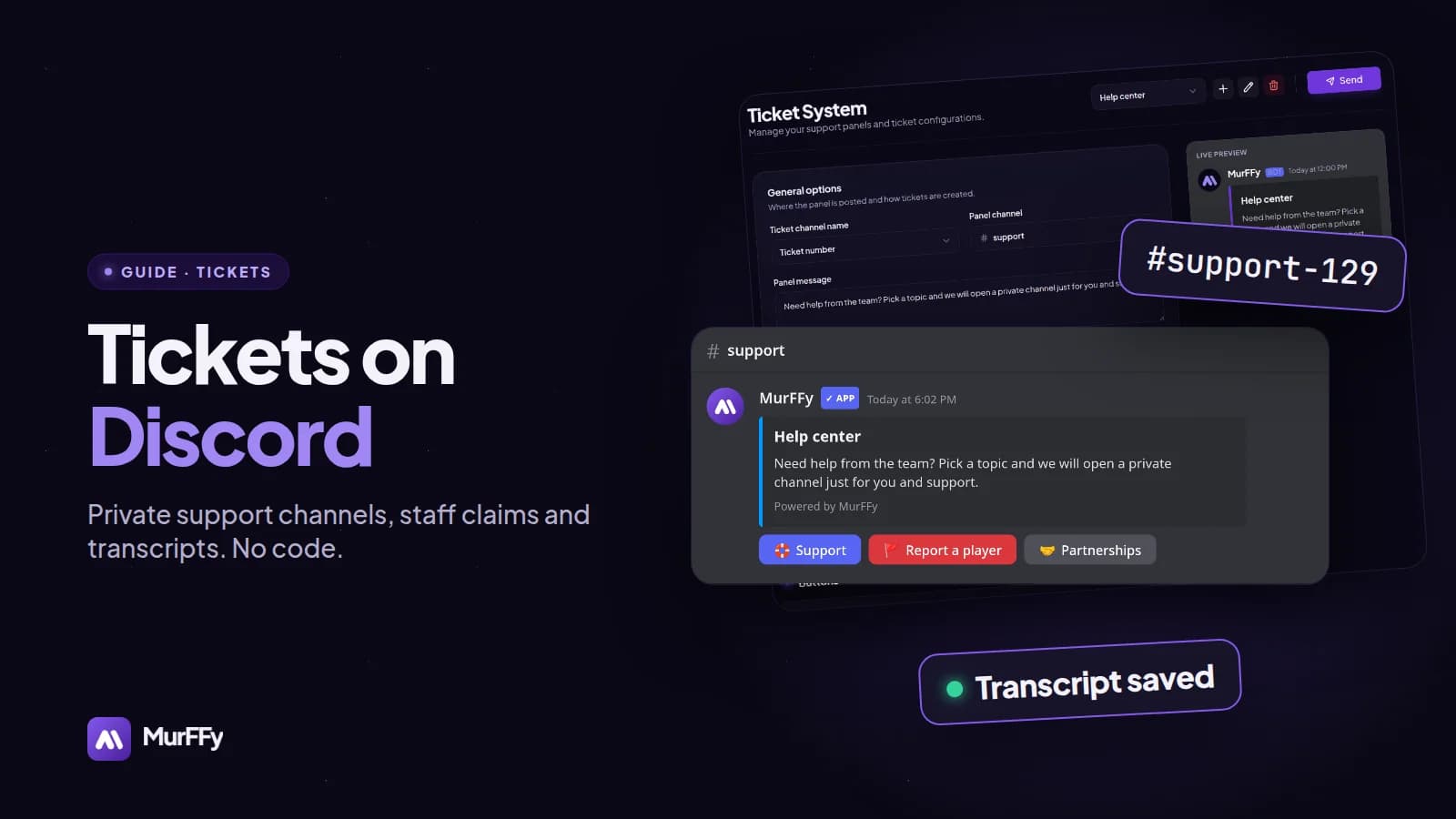
In this guide you will build a Discord ticket system with MurFFy: a panel with buttons, separate ticket types, a support role, ticket claiming and automatic transcripts.
Quick answer: how to make tickets on Discord
- Create a category for tickets (for example
HELP) and aSupportrole. - In the MurFFy dashboard, open Tickets → Panels and choose the panel channel.
- Add buttons for each ticket type, such as Support, Report a player, Partnerships.
- For each button pick the category, support role and transcript channel.
- Click Send and the panel appears in your channel.
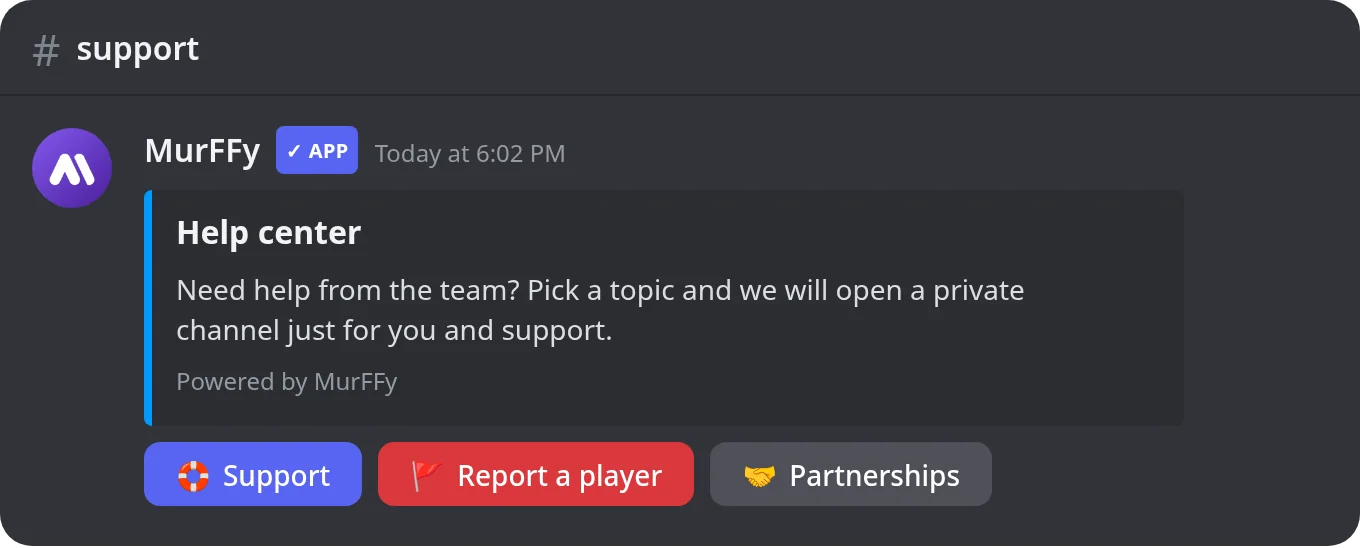
How a Discord ticket system works
- A member clicks a button on the panel.
- The bot creates a private channel (or private thread) visible only to them and the support role.
- The new ticket opens with a welcome message and Close and Claim buttons.
- A staff member clicks Claim, so everyone knows who is handling it.
- When it's solved, the ticket is closed and the bot saves a transcript.
Nothing gets lost, and staff can see which tickets are open and who owns them.
Step 0. Prepare the server
Before opening the dashboard, do two things in Discord:
- A ticket category. Create a category such as
HELPand take View Channel away from@everyone. New tickets inherit these permissions, so outsiders never see them. - A support role. Create a role such as
Supportand give it to the people who answer tickets.
The bot needs Manage Channels, Manage Roles, View Channel and Send Messages in that category. If something is missing, MurFFy tells you exactly which permission.
Step 1. Set the panel options
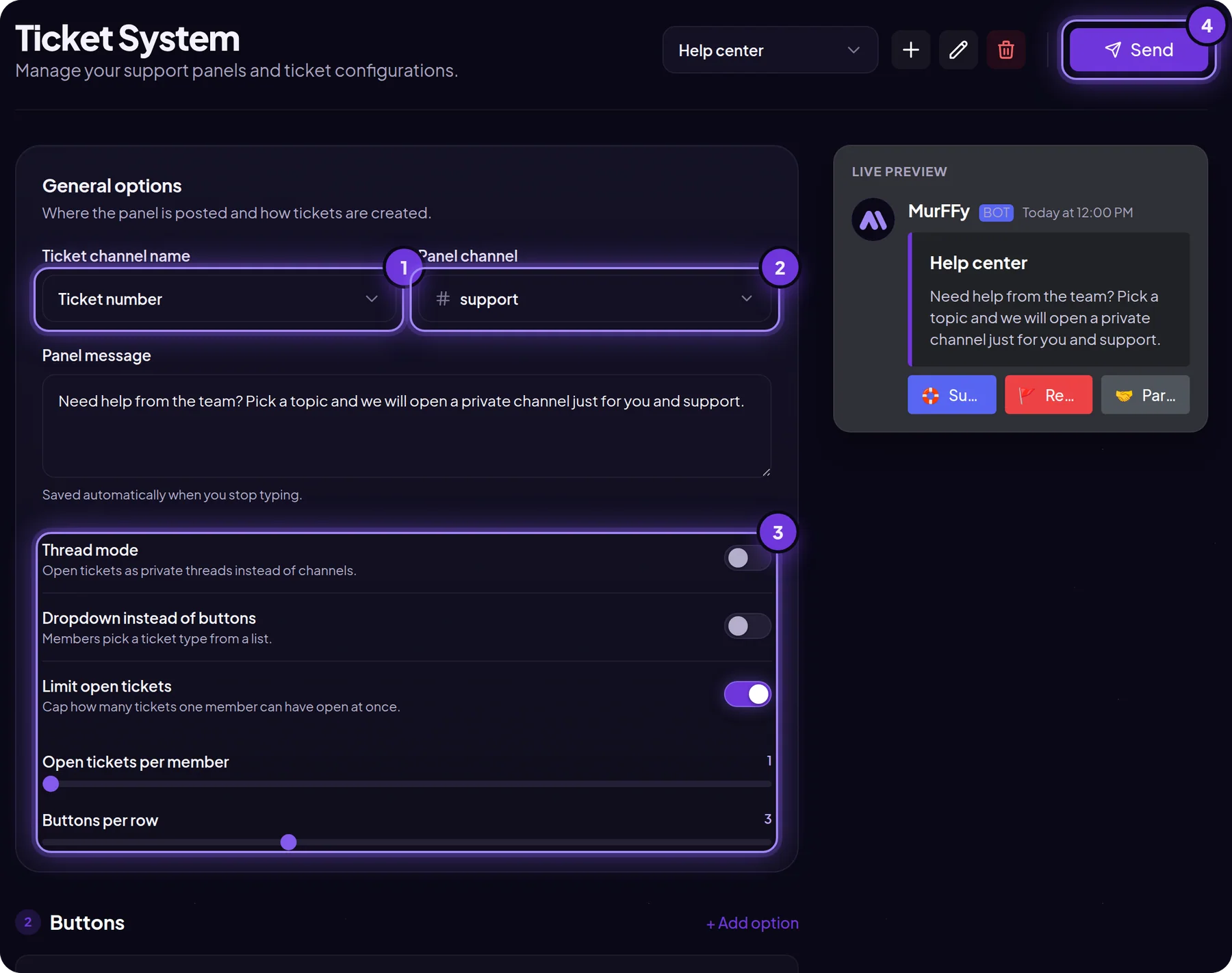
- Ticket channel name: ticket number or username. A number (
support-129) is more private and easier to search. - Panel channel: where the bot posts the message with buttons, for example
#support. - Panel message: a short note on when to open a ticket. It saves automatically when you stop typing.
- Extra options:
- Thread mode: tickets as private threads instead of channels. Good if you don't want dozens of channels in the list.
- Dropdown instead of buttons: handy with many ticket types.
- Limit open tickets: how many tickets one member can have at once. Set it to 1 to prevent ticket spam.
Step 2. Add a button for each ticket type
Every button on the panel is a separate ticket type. Click + Add option, then the edit icon next to a button to configure it.
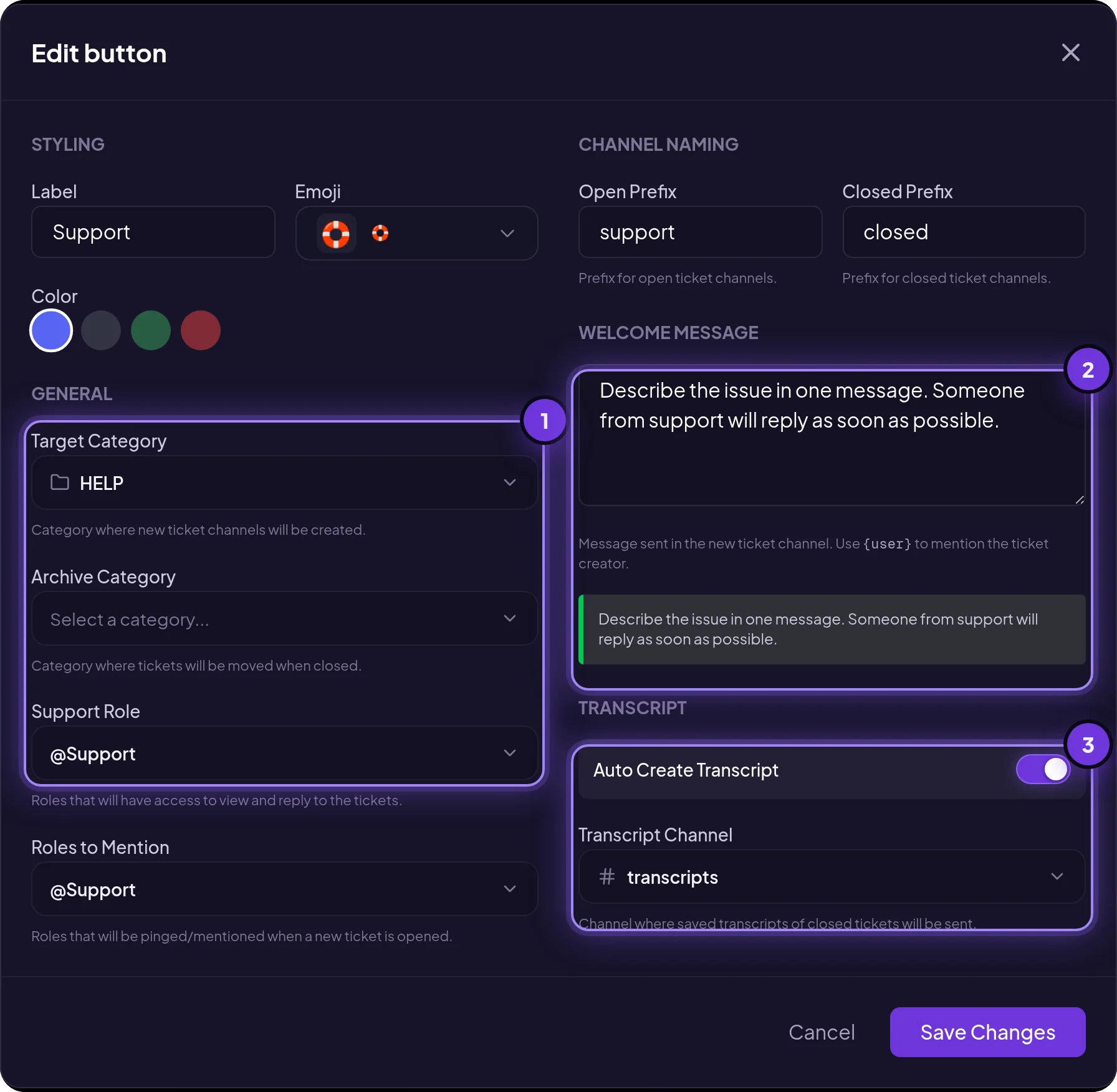
- Styling: label, emoji and button color. Red suits reports, blue suits help.
- Target category: where the channel is created. You can also set an archive category for closed tickets.
- Support role: who can see and answer tickets from this button. Report a player can go to moderators, Partnerships only to admins.
- Roles to mention: who gets pinged when a ticket opens.
- Channel prefixes: for example
supportfor open tickets andclosedfor closed ones. - Welcome message: the first message in the ticket. Ask for specifics like an in-game name or a screenshot.
Step 3. Send the panel and test a ticket
Click Send in the top right. Open a test ticket from an account without the support role and check that only the author and staff can see it.
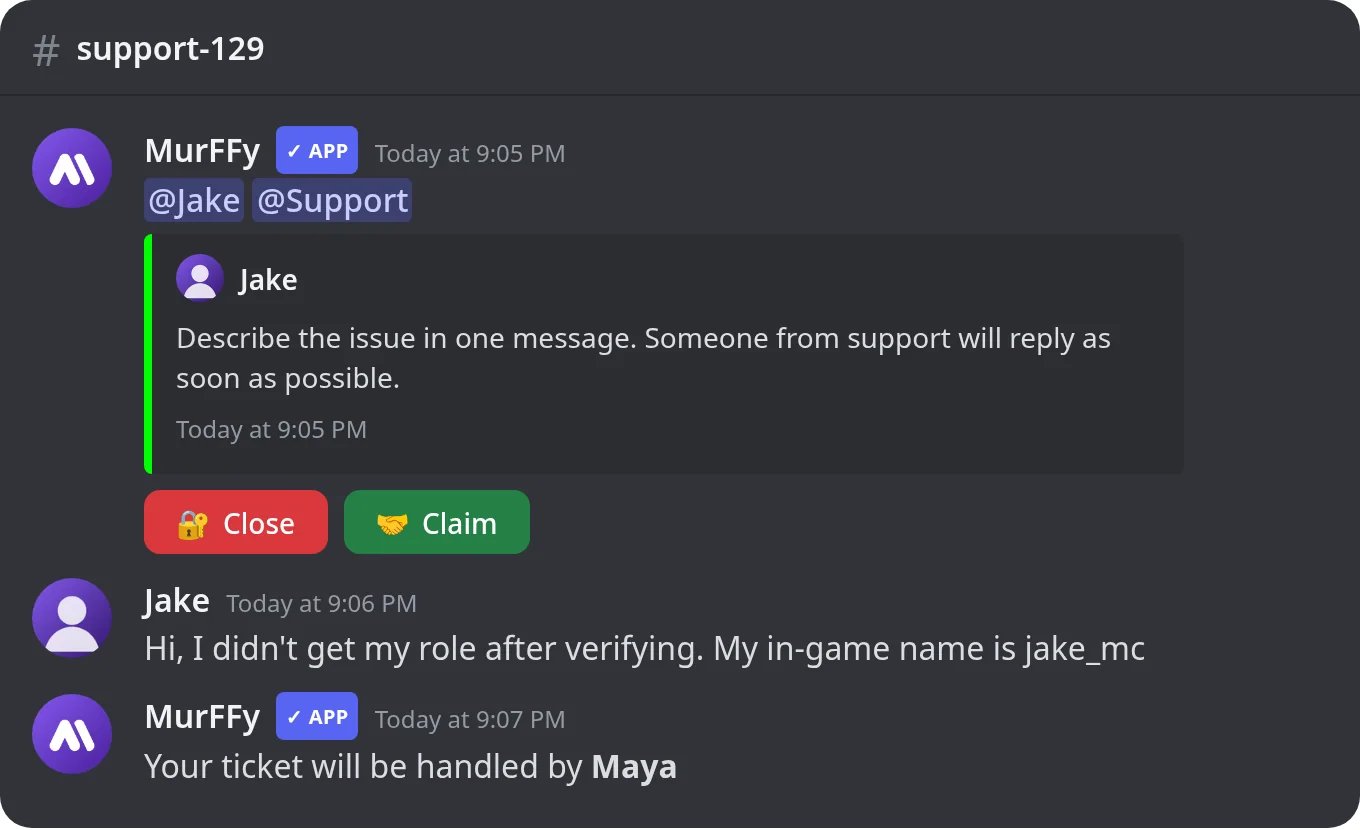
Claim records who is handling the ticket and tells the author Your ticket will be handled by…. Two people never answer the same request.
Closing tickets and transcripts
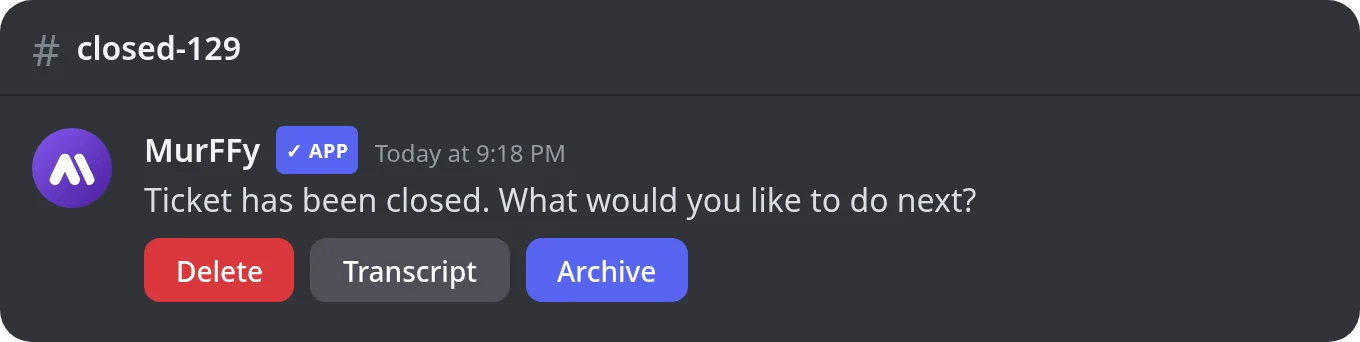
After Close, the bot asks for confirmation, renames the channel with the closed prefix and offers Delete, Transcript and Archive (if an archive category is set).
A transcript is a record of the whole conversation. With Auto Create Transcript on, it's posted to a chosen channel (such as #transcripts) with a View online button. You can also browse every transcript in the dashboard under Tickets → Transcripts, which helps with ban appeals and disputes.
Ticket commands
| Command | What it does |
|---|---|
/add | Adds someone to the ticket, e.g. a second moderator |
/remove | Removes someone from the ticket |
/close | Closes the ticket without clicking the button |
/transcript | Creates a transcript of the current ticket |
Panel layouts you can copy
Gaming server: Tech support, Report a player, Appeal a punishment, Partnerships.
Store or services: Order, Refund, Pre-sale question, each routed to a different role such as Seller and Admin.
Staff applications: a separate Staff applications panel with one Apply button and thread mode. For fixed questions, look at the Forms module in the dashboard.
FAQ
Are MurFFy tickets free?
Yes. Panels, buttons, claiming and transcripts are on the free plan. Premium raises the number of ticket panels.
Can members see other people's tickets?
No. A ticket channel only grants access to the author and the support roles of that button, as long as the category isn't public.
Channels or threads?
Channels are easier for staff to manage and permission. Threads keep the channel list clean and suit lots of short requests.
Why doesn't the bot create a ticket?
Usually it lacks permissions in the ticket category, or the category was deleted. The bot tells you what's missing. Give its role Manage Channels and Manage Roles there.
What's next
Tickets are the backbone of good moderation. Add raid protection and new-account screening, and publish your rules in a clean embed.
Build a ticket panel in MurFFy →
More on the module: Discord ticket bot.