On this page
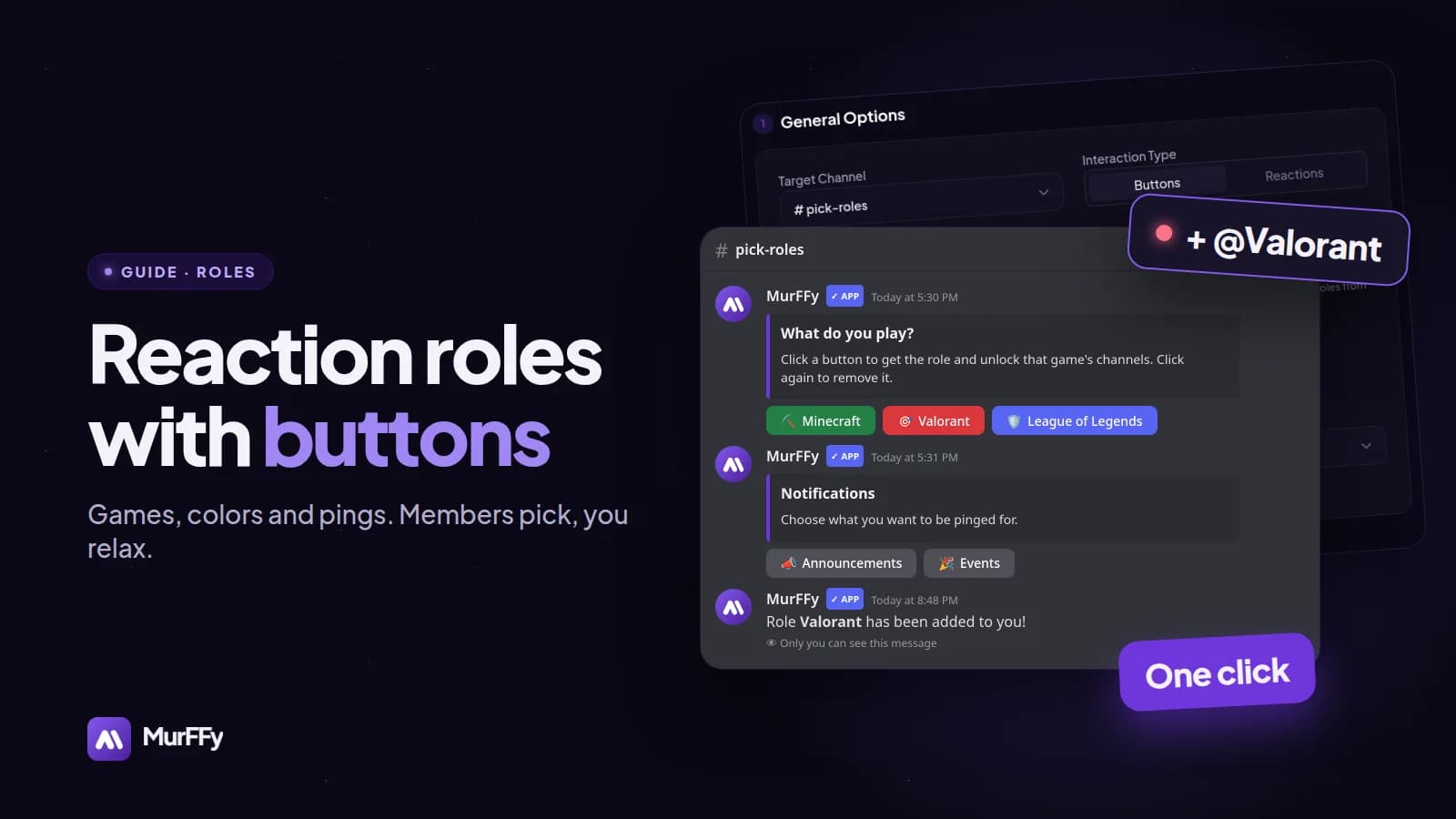
Handing out roles by hand works until your server has twenty members. After that, moderators spend half their day answering "can I get the Minecraft role?". Self-assignable roles solve it for good: members click a button and get the role that unlocks channels, changes their name color or turns on notifications.
In this guide you will build a Discord role panel with MurFFy, with buttons or reactions, a one-role-only mode (for colors) and a blacklist for chosen members.
Quick answer: how to make reaction roles in Discord
- Create the roles in Server Settings and drag the MurFFy bot role above them.
- In the MurFFy dashboard, open Selfrole and create a panel, e.g. Games.
- Pick the channel, the interaction type (buttons or reactions) and the message.
- Under Role Items, add roles with a label, emoji and button color.
- Click Send. The panel appears in your channel, for example
#pick-roles.
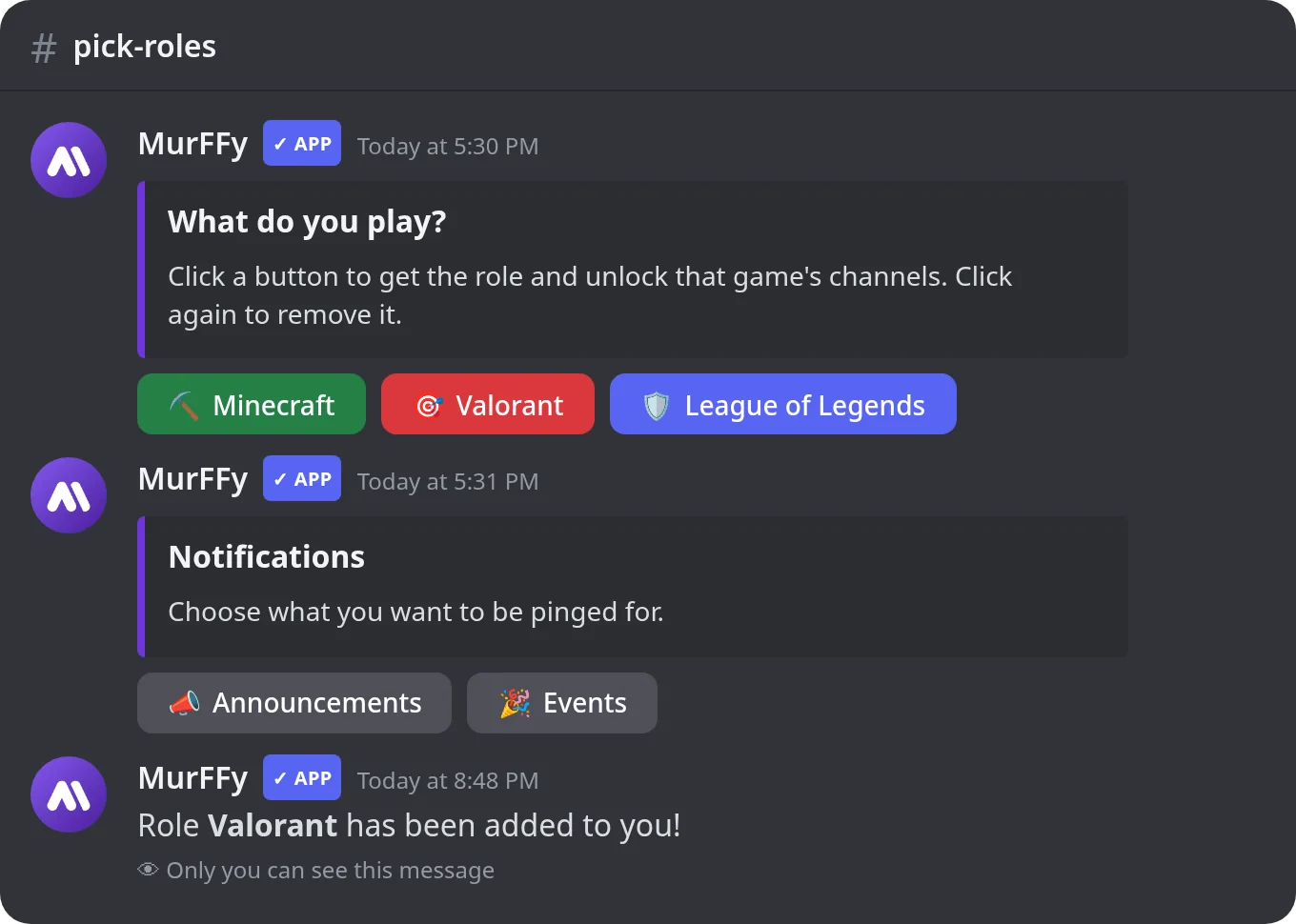
Buttons or reactions?
Classic reaction roles mean clicking an emoji under a message. They work, but reactions are easy to remove by accident, they don't show the role name, and small emoji are hard to hit on mobile. Buttons are clearer and give instant feedback.
| Buttons | Reactions | |
|---|---|---|
| Clarity | Role name on the button | Emoji only |
| Feedback | Bot confirms the role was added or removed | None |
| On mobile | Easy to tap | Small targets |
| Colors | 4 button colors | None |
MurFFy supports both, so you can keep whatever your community is used to. Starting fresh? Pick buttons.
Step 1. Prepare roles and hierarchy
In Server Settings → Roles, create the roles members should pick, such as Minecraft, Valorant, League of Legends. Then set channel permissions so that #minecraft is only visible to the Minecraft role.
The golden rule: the MurFFy bot role must be above the roles it assigns. This is the number one reason reaction roles "don't work". Roles managed by integrations or other bots can't be assigned at all.
Step 2. Create a panel and set the options
In the dashboard, open Members & channels → Selfrole and click + to create a panel. Each panel is one message on Discord, so make separate panels for games, colors and notifications.
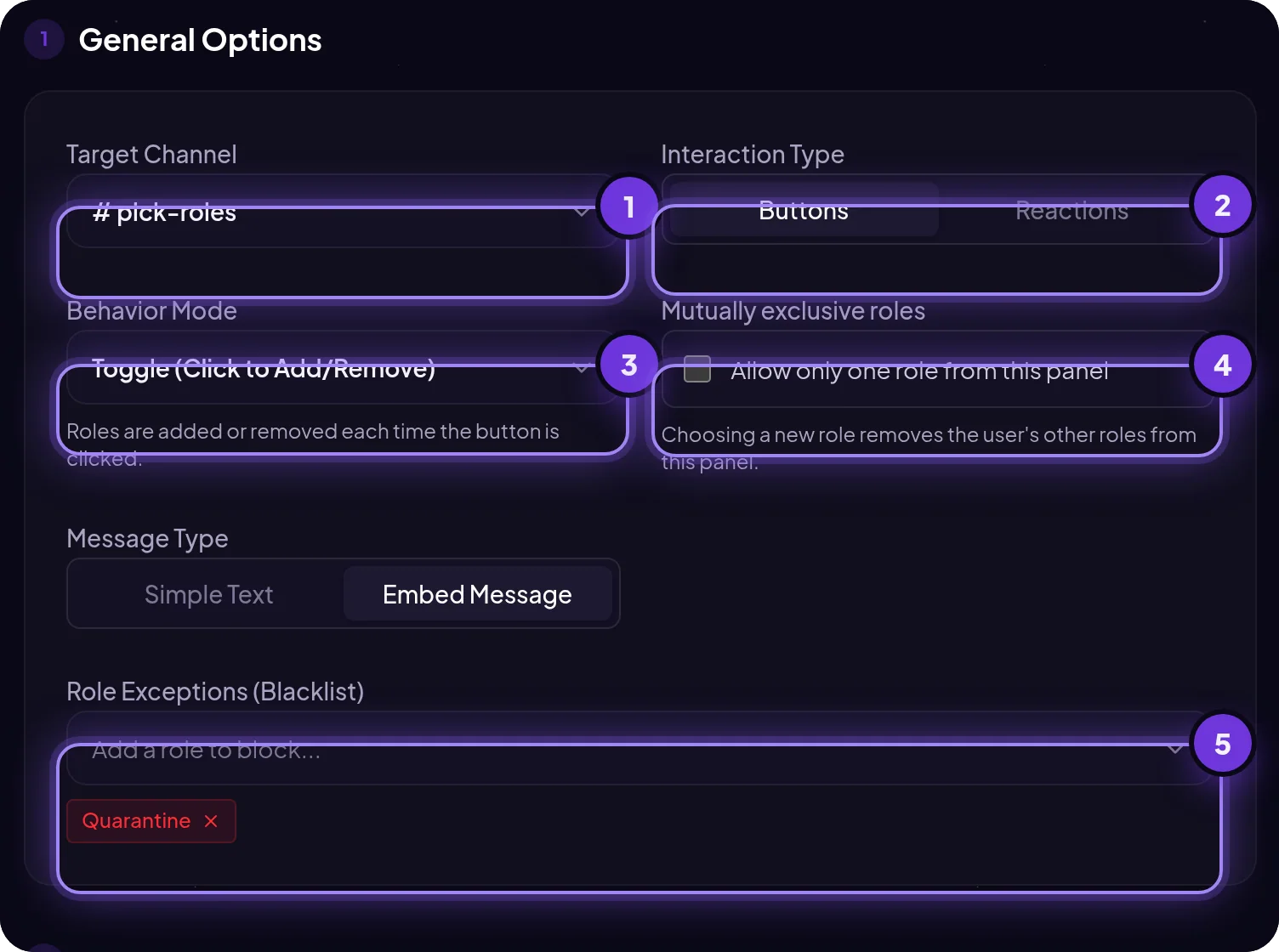
- Target channel: where the panel is posted.
- Interaction type: buttons or reactions.
- Behavior mode: in toggle mode each click adds or removes the role. With reactions, standard mode gives the role on react and removes it on un-react.
- Mutually exclusive roles: tick this if members may hold only one role from the panel. Perfect for name colors or regions. Picking a new role removes the old one.
- Role exceptions (blacklist): members with these roles can't use the panel. Add something like
Quarantine, so new, unverified accounts can't unlock channels.
Below that you write the message: plain text or an embed with title, description, color, images and fields. For richer messages see the guide on Discord embeds.
Step 3. Add roles to the panel
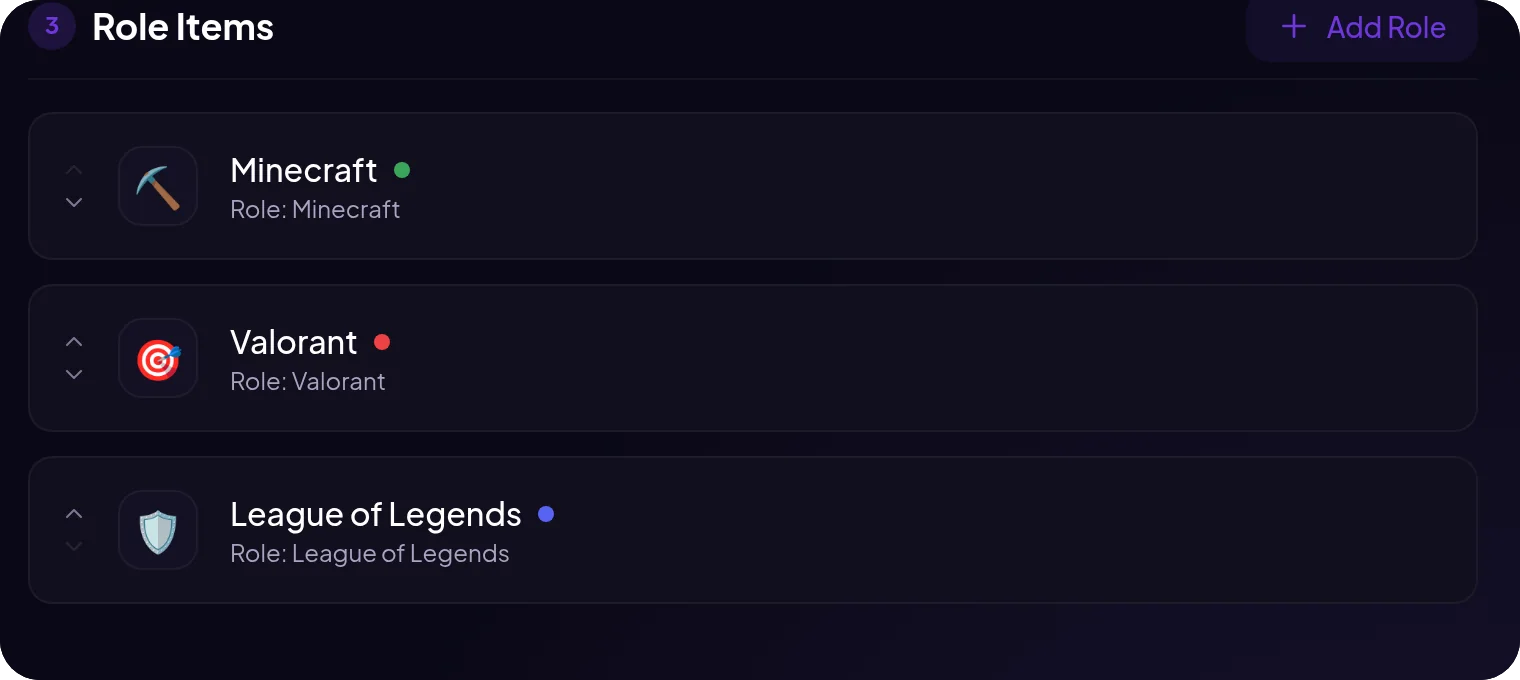
Click Add Role and set:
- the label, the text on the button,
- the emoji shown next to the label (or used as the reaction),
- the button color: blurple, gray, green or red,
- the role the bot gives or removes on click.
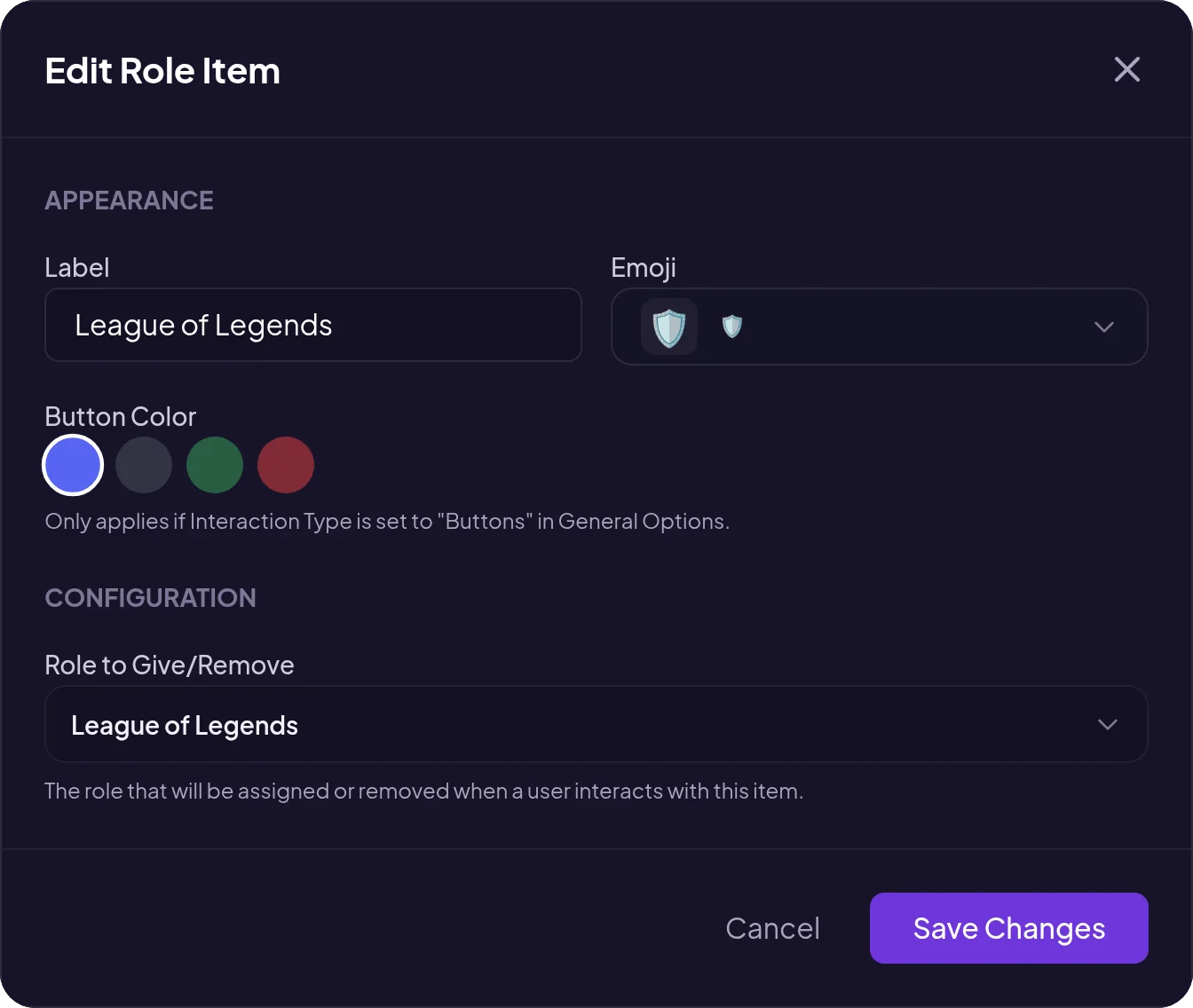
When you're done, click Send in the top right. If you change the panel later, send it again so the Discord message shows the current roles.
5 role panel ideas
- Games: each game unlocks its own text and voice channels.
- Notifications:
Ping: announcementsandPing: eventsroles. You only ping people who opted in, which is one of the best ways to stop members from muting your server. - Name colors: 6–10 colors with one-role mode on.
- Pronouns and age:
he/him,she/her,they/them,18+if you have age-gated channels. - Region or language: useful on international servers.
Reaction roles vs. auto roles
Two different tools that work well together:
- Join roles (auto roles) are given to every new member automatically, for example
Newcomer. - Self roles are picked by members whenever they want.

A typical setup: the join role unlocks #rules and #pick-roles, and choosing a game opens the rest of the server. More in the guide to welcome messages and join roles.
Roles not being given? Common causes
- The bot role is too low. Drag it above the panel roles.
- The role is managed by an integration or another bot (like the booster role). Those can't be assigned.
- The member has a blacklisted role for that panel.
- The panel wasn't re-sent after big changes. Click Send again.
FAQ
Are MurFFy reaction roles free?
Yes. Buttons, reactions, one-role mode and the blacklist are on the free plan. Premium raises the number of panels.
How many roles can one panel have?
Discord allows 5 buttons per row and 5 rows per message, so up to 25 buttons. For more roles, split them across several panels.
How do I make color roles where you can only have one?
Create a panel with your color roles and tick Allow only one role from this panel. Name color comes from the highest colored role, so drag color roles high in the list.
What's next
Once members have their roles, reward activity with more: a leveling system or a shop that sells roles for server currency.