On this page
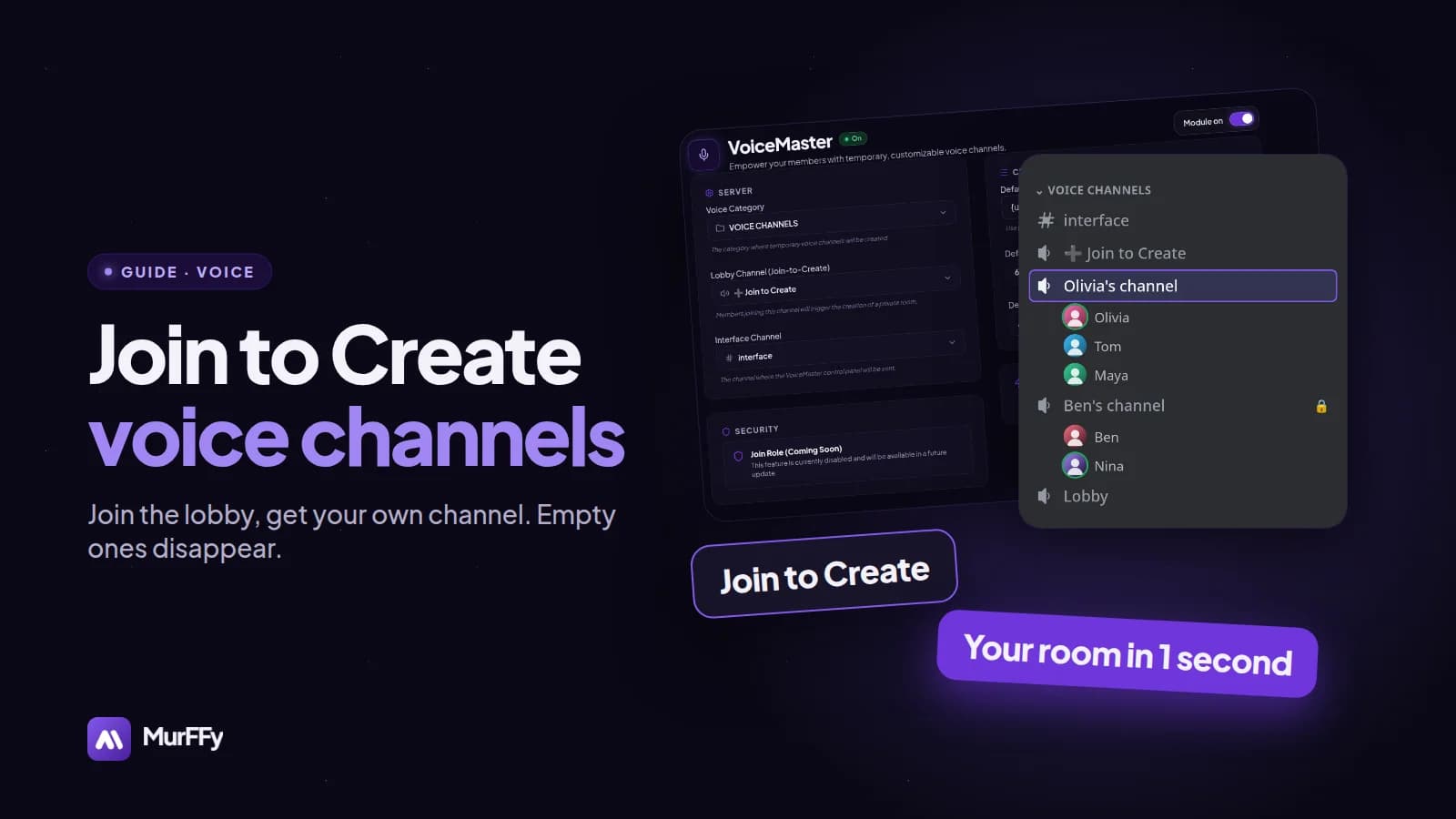
Most servers have the same voice channel problem. Either there are too few and groups talk over each other, or there are too many and the channel list looks like an empty parking lot. Temporary voice channels solve both: the server has one lobby channel, and everyone who joins it gets their own room. When the last person leaves, the channel disappears.
In this guide you will set it up with MurFFy's VoiceMaster module. It takes about 2 minutes.
Quick answer: how to set up Join to Create on Discord
- In the MurFFy dashboard, open Members & channels → VoiceMaster.
- Run the setup. The bot creates a category, a ➕ Join to Create lobby and an interface channel with a control panel.
- Set the default channel name, for example
{user.display_name}'s channel. - Join the lobby and check that the bot moved you to a new channel.
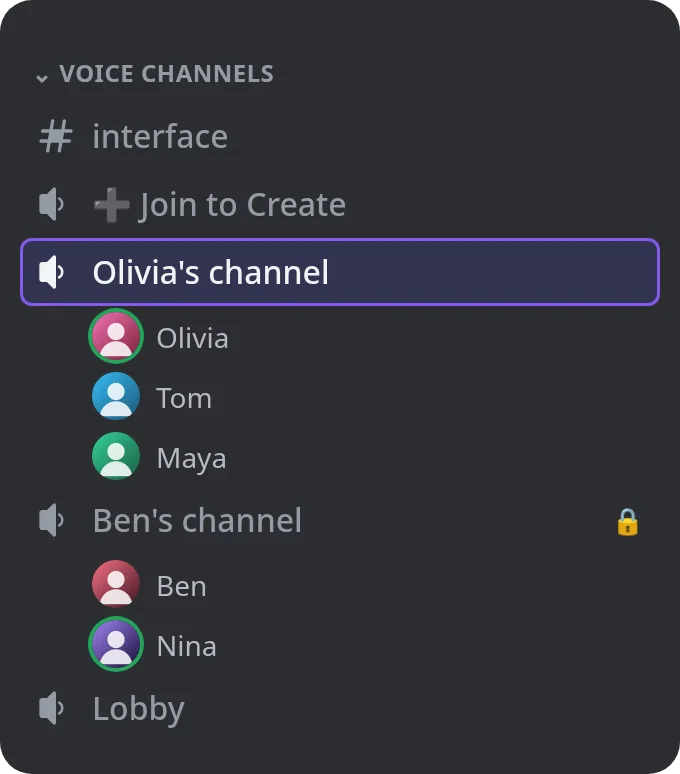
How Join to Create works
- A member joins the ➕ Join to Create lobby.
- The bot creates a new voice channel in the chosen category, names it from your template and moves the member there.
- The member who created it becomes the owner and can manage it.
- When the last person leaves, the bot deletes the empty channel.
The channel list only shows rooms where people are actually talking.
Step 1. Run the VoiceMaster setup
In the dashboard, open VoiceMaster and run the setup. MurFFy creates three things:
- a category for temporary channels,
- the ➕ Join to Create voice channel, the lobby,
- an interface text channel with a button panel for managing channels.
You can also run /voicemaster setup, optionally pointing it at an existing category. You can rename the created channels in Discord afterwards. The bot recognizes them by ID, not by name.
Step 2. Set the default name and audio quality
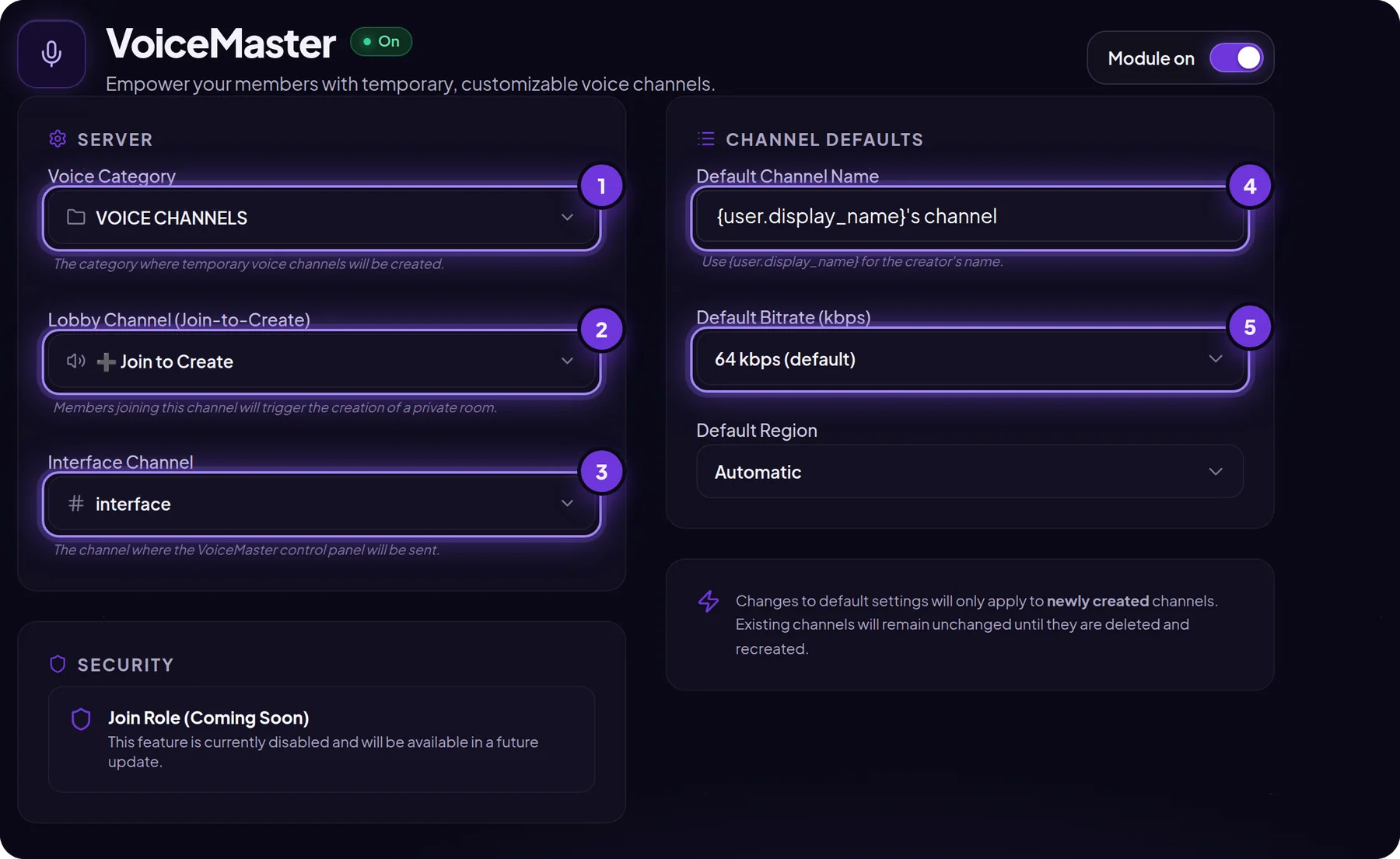
Under Default channel settings you decide what new rooms look like:
- Default channel name. Use variables so every channel carries its owner's name:
| Variable | Replaced with |
|---|---|
{user.display_name} | Display name on the server (nickname) |
{user.name} | Discord username |
{user} | Discord username |
Example: {user.display_name}'s channel becomes Olivia's channel.
- Default bitrate. 64 kbps is a good standard. Higher values (96–128 kbps) sound better for music, but your server needs the matching boost level. The bot never sets more than your server allows.
- Default region. Leave it on Automatic unless all your members are in one country and you have latency problems.
Changes apply to newly created channels. Existing rooms stay as they were.
Step 3. The channel control panel
In the interface channel the bot posts a panel with buttons. Channel owners manage their room without commands and without moderator permissions.
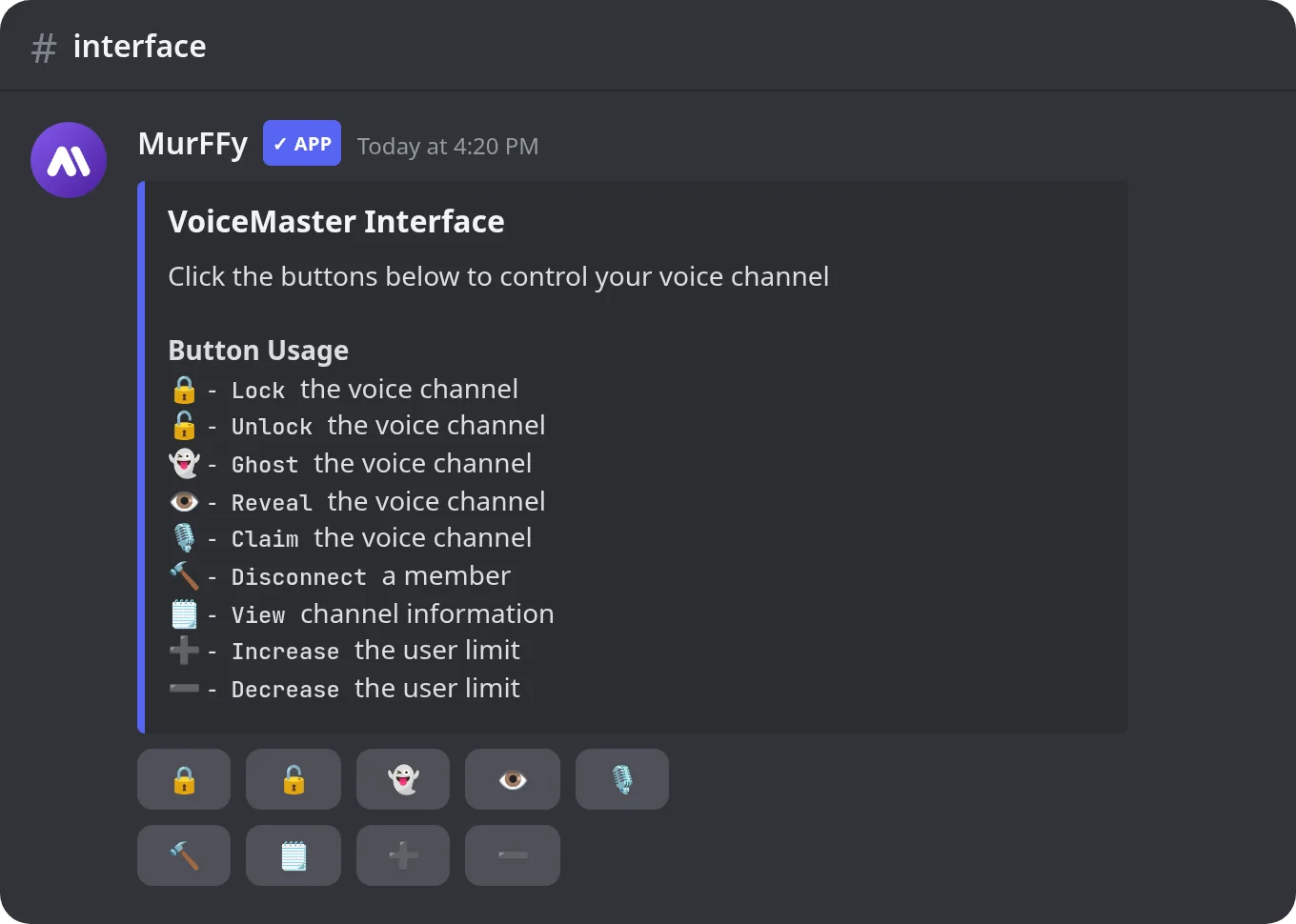
| Button | What it does |
|---|---|
| Lock / Unlock | Blocks or allows joining the channel |
| Ghost / Reveal | Hides the channel from the list or shows it again |
| Claim | Takes over the channel when the owner has left |
| Disconnect | Disconnects a chosen member |
| View | Shows channel information |
| + / − | Raises or lowers the user limit |
A group of friends can lock themselves in for a private chat, and a five-person team can set a limit of 5 so nobody walks in mid-match.
Best practices
- Separate lobbies per game. Name them Create: Valorant and Create: Minecraft so everyone knows who plays what. To show game lobbies only to members with a role, combine this with reaction roles.
- Keep one permanent channel, such as Lobby or Hangout, for people who just want to drop in.
- XP for voice. If you use a leveling system, turn on XP per voice minute. Members earn points in temporary channels too.
- Category permissions. Channels inherit the category's permissions. If the category is hidden from the
Quarantinerole, new accounts can't join temporary channels either.
FAQ
Is VoiceMaster free?
Yes, the module is on the free plan.
The bot doesn't create a channel when I join the lobby. What should I check?
The bot needs Manage Channels and Move Members in the category. Also check that the lobby set in the dashboard is the channel you are joining.
Does the channel disappear when the owner leaves?
No. The channel stays as long as someone is in it, and the others can take it over with Claim. The bot only deletes empty channels.
Can I change the settings with commands?
Yes. /voicemaster default name, /voicemaster default bitrate and /voicemaster default region change the defaults without opening the dashboard.
What's next
Temporary voice channels pair well with member counters and welcome messages that show newcomers where people hang out.