On this page
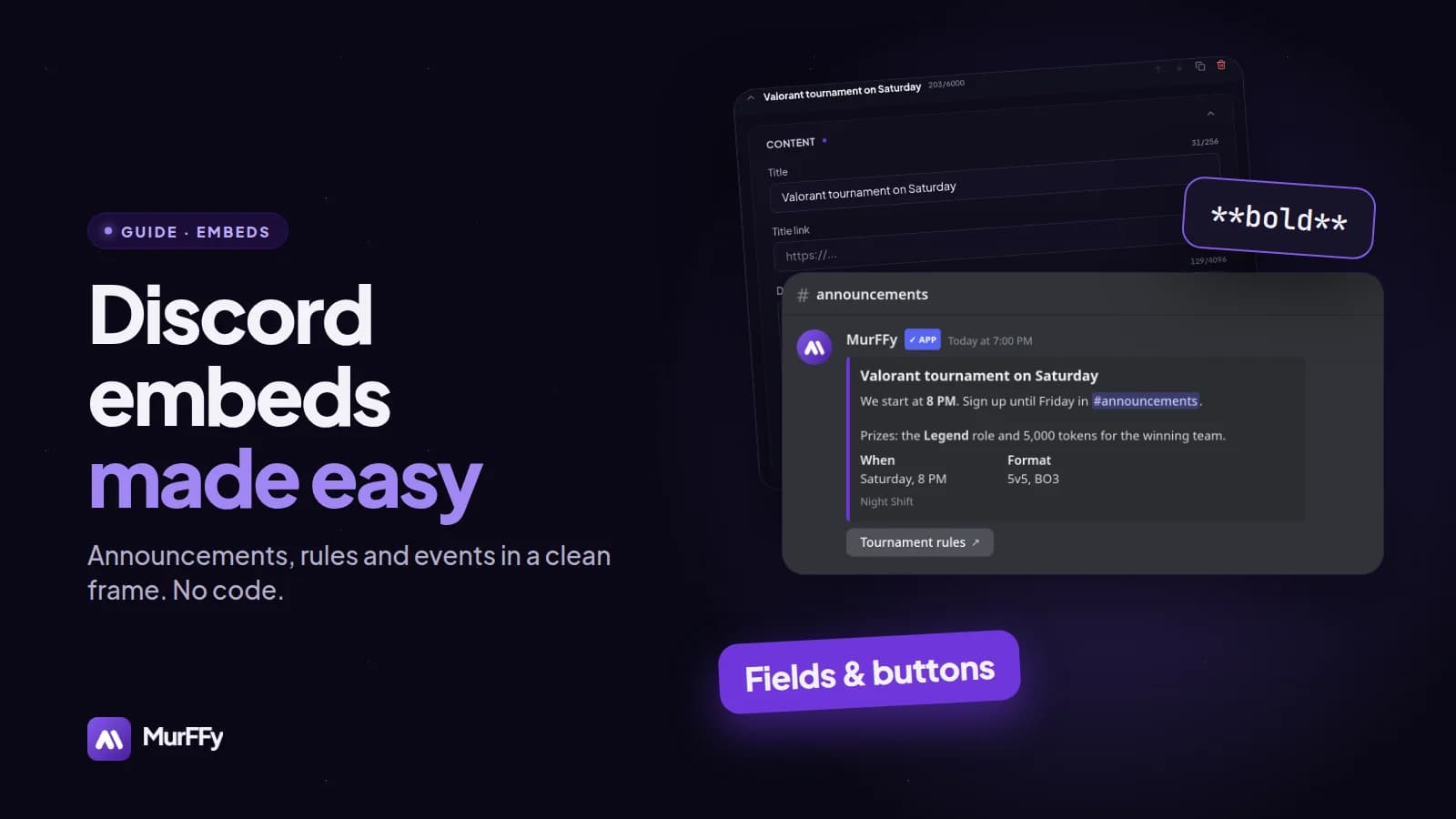
A tournament announcement sent as a plain message gets lost in chat: one long paragraph, lots of emoji, a link at the very end. The same announcement as an embed has a title, a colored bar, readable fields for the date and format, and a button for the rules. The difference is obvious.
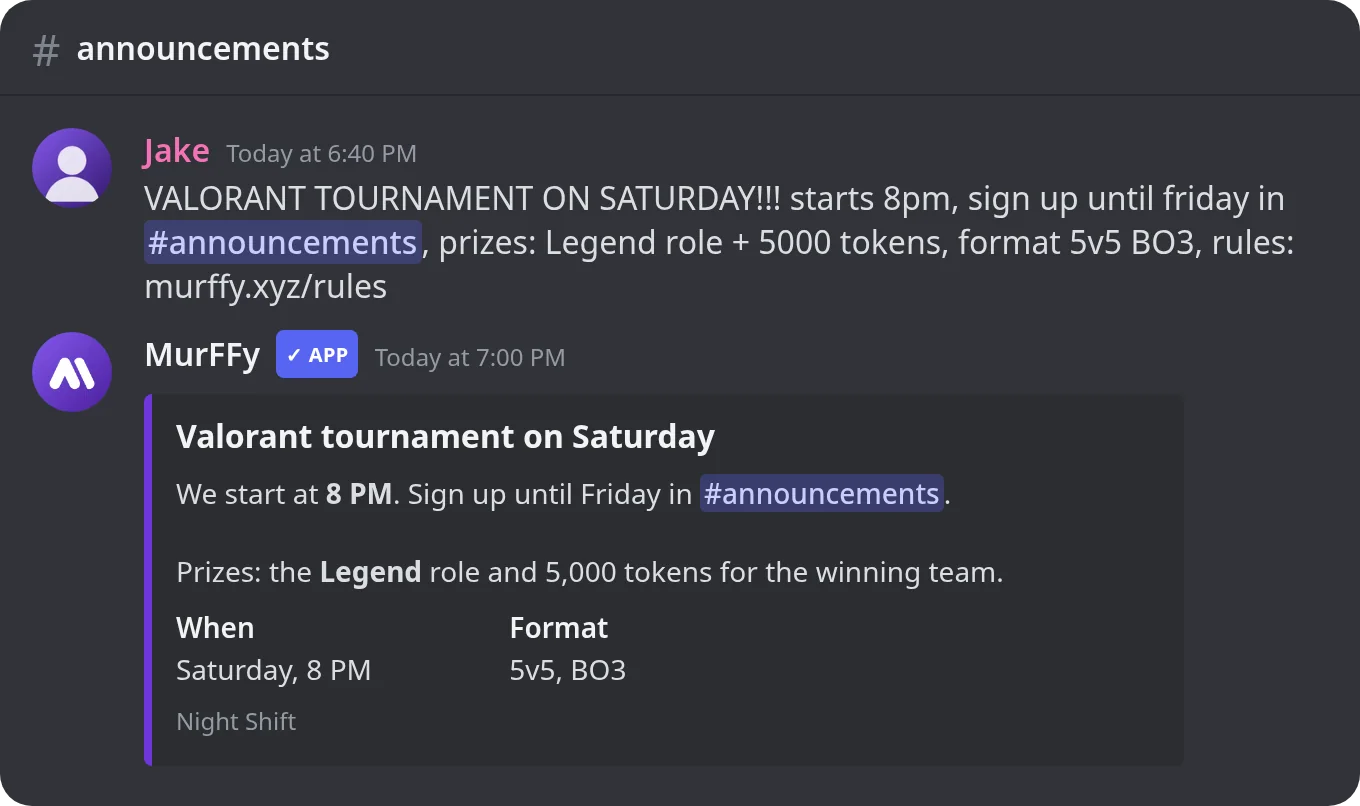
Regular user accounts can't send embeds, but bots and webhooks can. In this guide you will build an embed in MurFFy's visual editor and send it to a channel, without any code or JSON.
Quick answer: how to make an embed on Discord
- In the MurFFy dashboard, open Automation & content → Embed Builder.
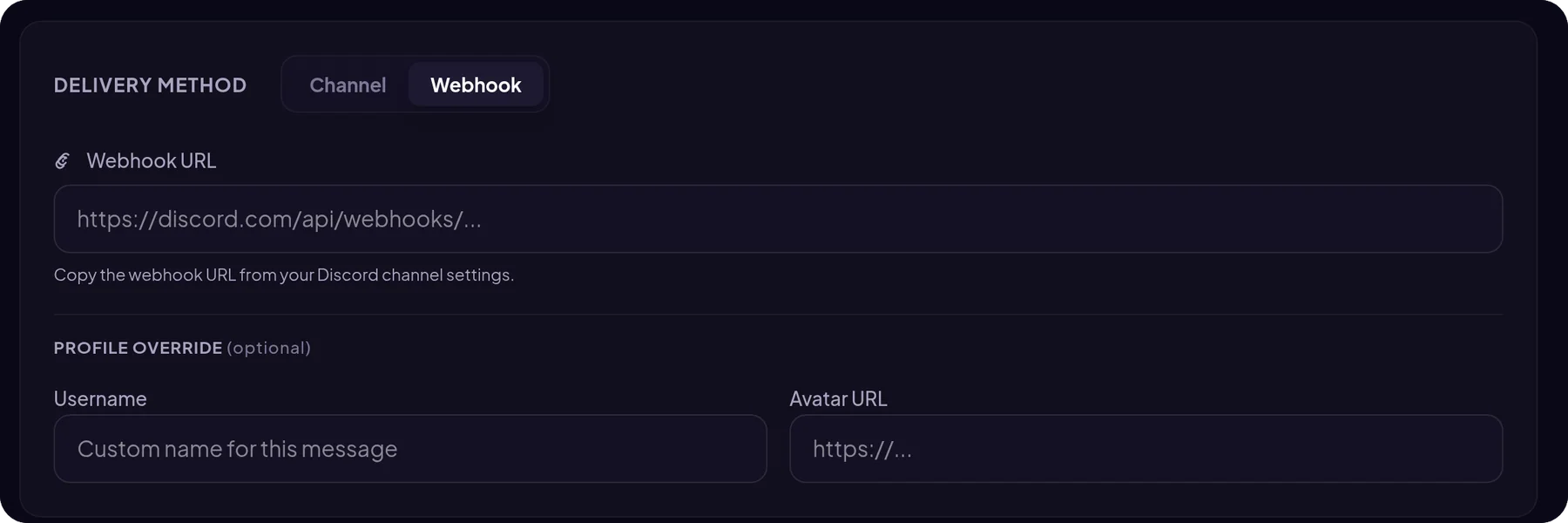
- Choose how to send it: Channel (as the bot) or Webhook (with your own name and avatar).
- Enter a title and description and pick the bar color.
- Add fields, images, a footer and link buttons.
- Check the live preview on the right and click Send message.
What is a Discord embed?
An embed is a special message type: a box with a colored bar on the left that can contain:
| Element | Limit |
|---|---|
| Title (can be a link) | 256 characters |
| Description with Markdown | 4,096 characters |
| Fields (name and value, inline or stacked) | up to 25 fields |
| Author with icon | 256 characters |
| Large image and a corner thumbnail | 1 + 1 |
| Footer with icon | 2,048 characters |
| All embeds in one message combined | 6,000 characters |
One message can hold up to 10 embeds and up to 25 link buttons (5 per row). The builder enforces these limits for you and shows a character counter on every field.
Step 1. Open the builder and choose how to send
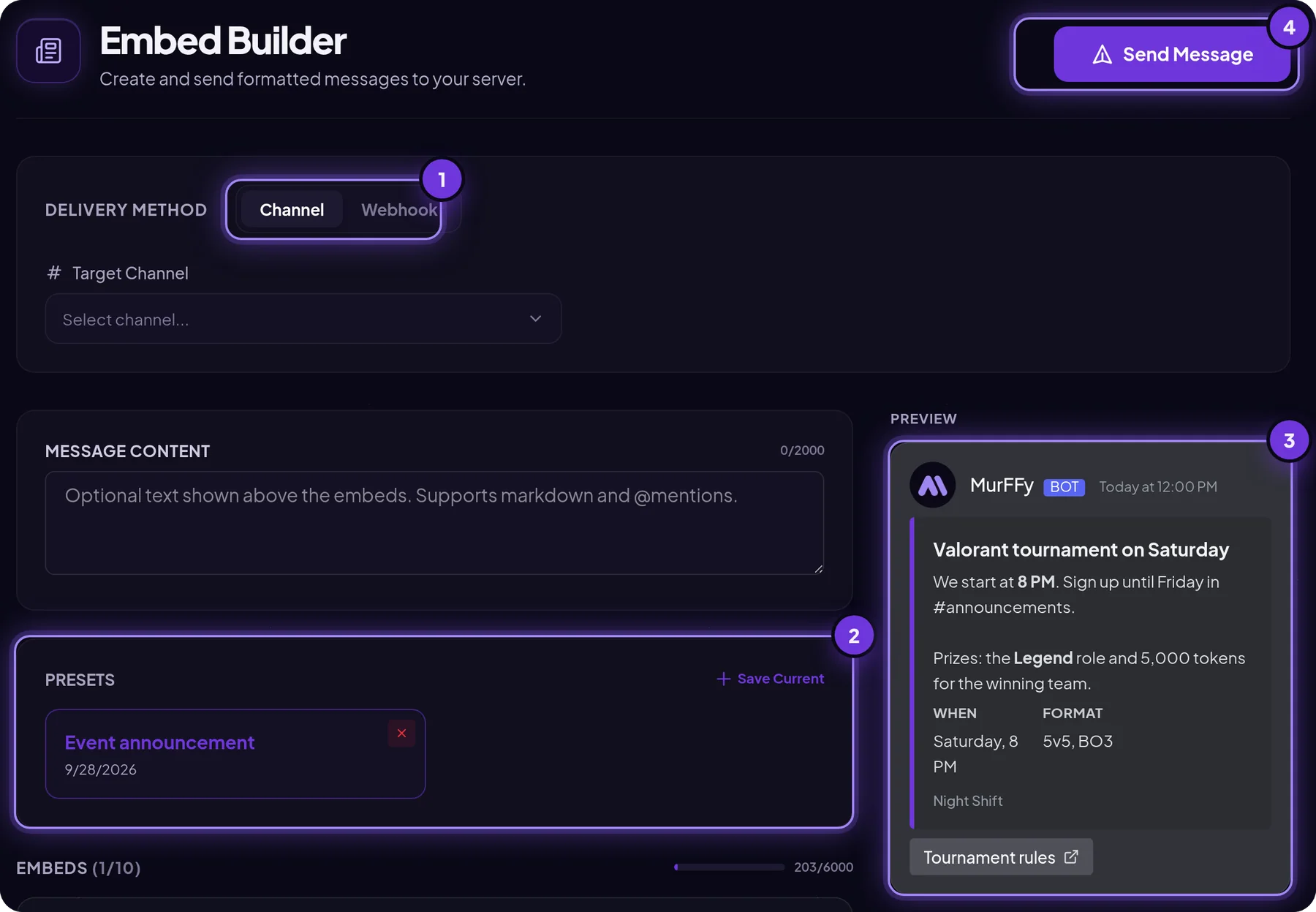
- Channel: the MurFFy bot sends the embed. Pick the target channel, such as
#announcements. - Webhook: paste a webhook URL from the channel settings (Edit Channel → Integrations → Webhooks). You can then set your own name and avatar for the sender, for example your server's name and logo.
Step 2. Write the embed content
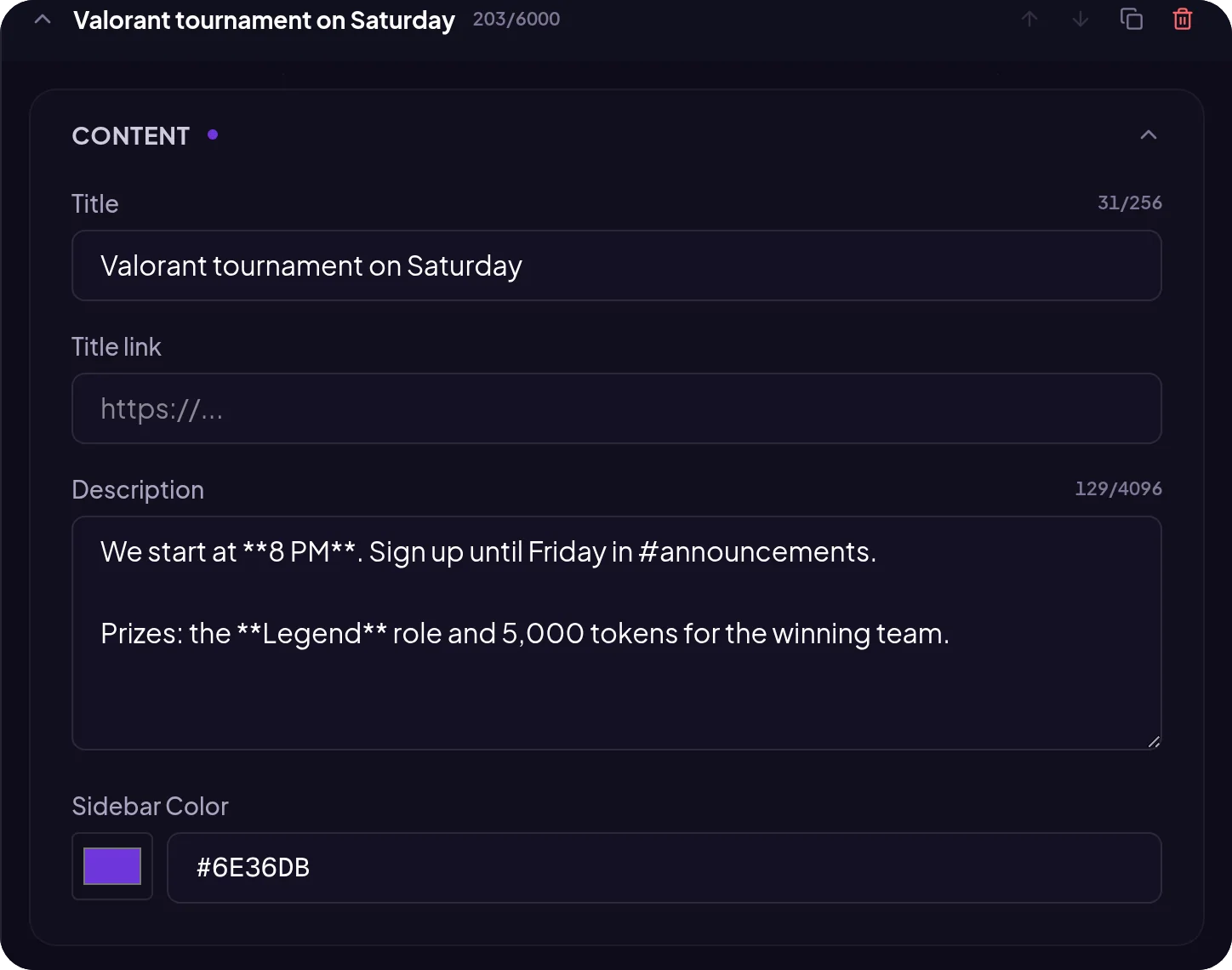
Discord formatting works in the description:
| You type | Result |
|---|---|
**text** | bold |
*text* | italic |
__text__ | underline |
~~text~~ | strikethrough |
`code` | code |
> quote | quote |
[text](https://url) | inline link |
<#channel-id> | channel link |
Pick a bar color per message type and stick to it: purple for announcements, green for events, red for warnings. Members quickly learn to recognize messages by color.
Step 3. Add fields, images and a footer
Fields are name: value pairs. Tick Inline and fields sit side by side (up to three per row). It's the best layout for When / Where / Format details.
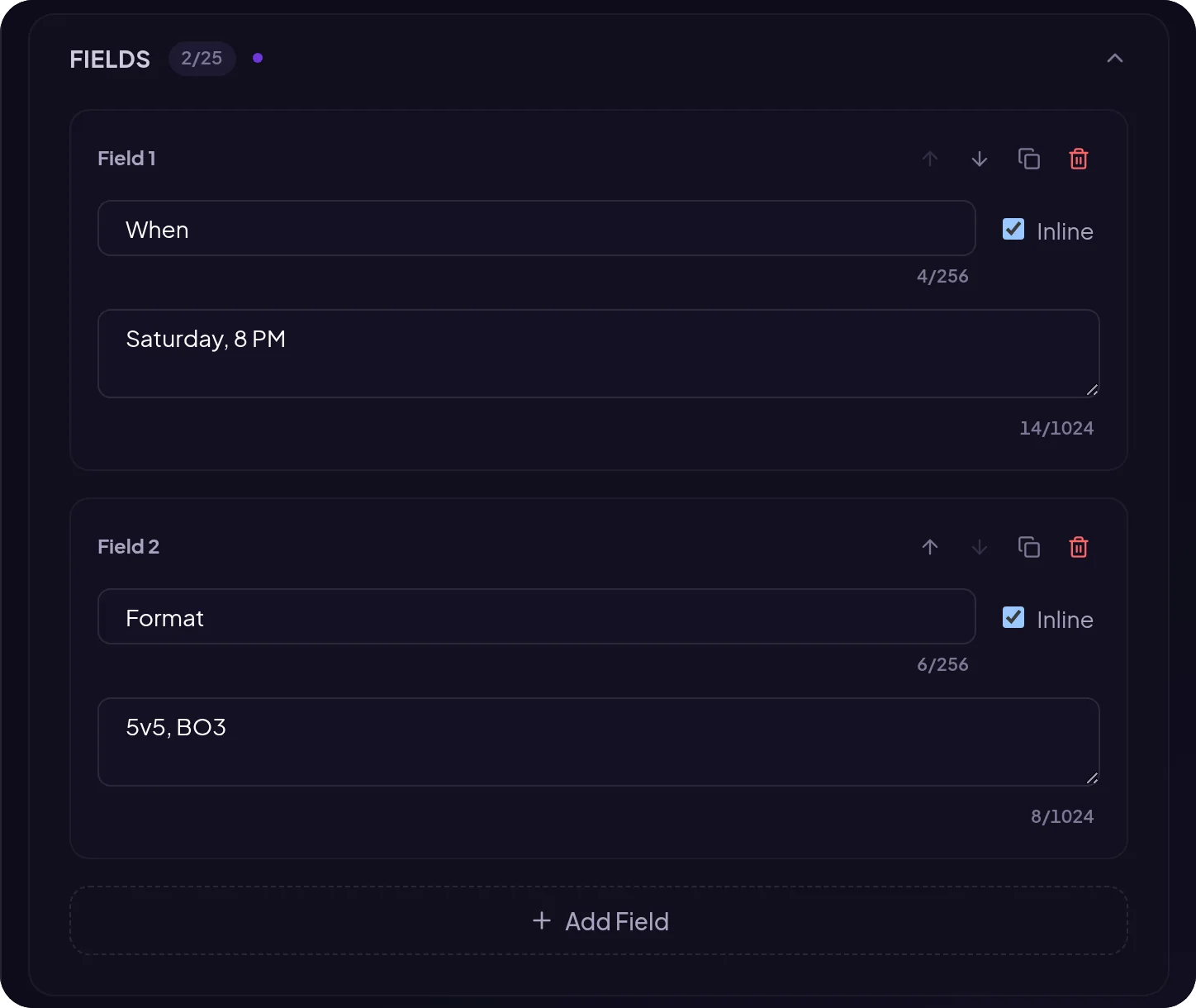
- Images: a large image under the content (such as event art) and a thumbnail in the top right (such as a game logo).
- Author: a name and icon above the title, such as "Staff team".
- Footer: small text at the bottom, such as your server name.
- Link buttons: such as Tournament rules or Sign up. They open a URL.
Step 4. Save a template and send
If you post similar announcements regularly, click Save current in the Templates section. Next time you load the layout in one click and only change the date.
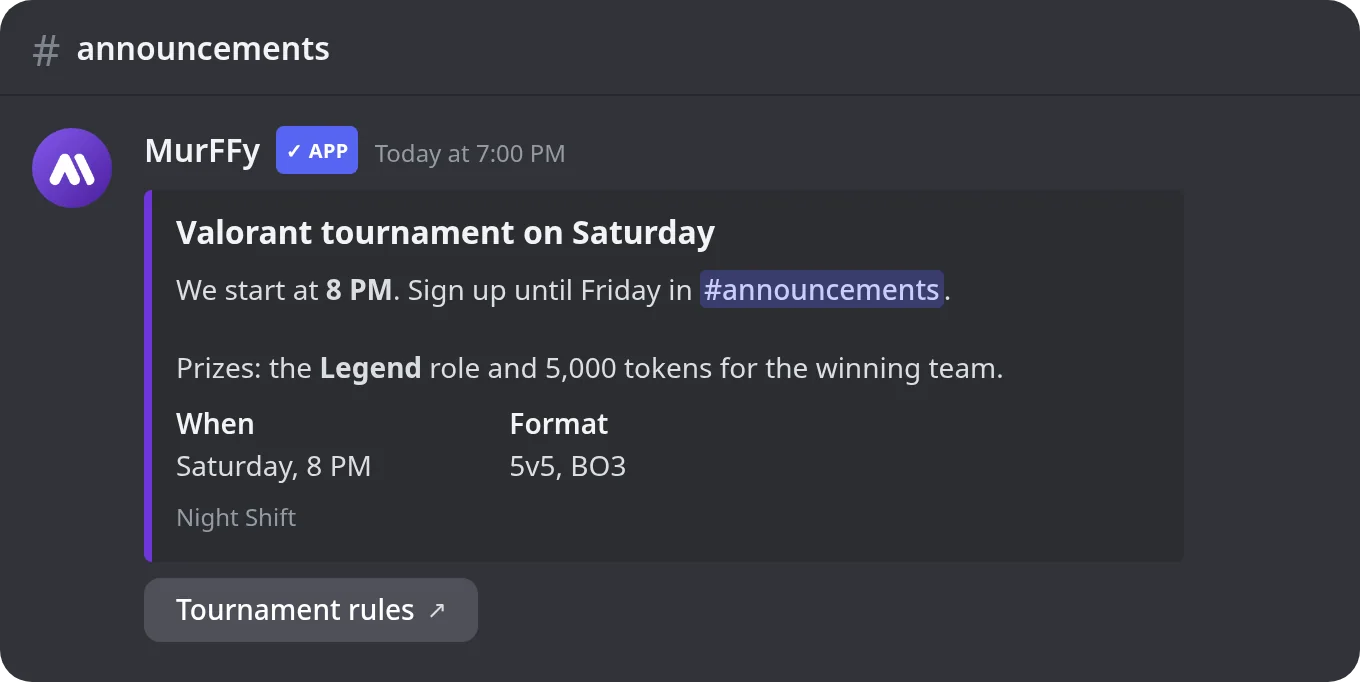
Check the preview and click Send message. The result:
6 ways to use embeds on your server
- Server rules: each rules section as a field or its own embed.
- Announcements and events: date, time and format in fields, art as the image.
- FAQ: questions as field names, answers as values.
- Community links: buttons to your website, store and socials.
- Staff recruitment: requirements in fields, a button to the application form.
- Server changelog: what changed this week.
Embeds also work as the message of a reaction role panel and a ticket panel.
FAQ
Can I send an embed without a bot?
Not from a regular account. Embeds are sent by bots or webhooks. The MurFFy builder supports both.
Is the embed builder free?
Yes. Sending as the bot and through webhooks, every embed element and link buttons are on the free plan. Premium raises the number of saved templates.
Why doesn't my image show in the embed?
The URL must point directly to the file (usually ending in .png, .jpg, .gif or .webp) and be publicly accessible. A link to a page that contains the image won't work.
What's the difference between embeds and Components V2?
An embed is the classic box with fields. Components V2 is Discord's newer message format where you mix text, images, separators and buttons in any order. You'll find both under Automation & content in the dashboard.
What's next
Embeds are the backbone of a readable server. Use them in your welcome messages, or walk through the full Discord server setup checklist.