On this page
You found a bot that should handle tickets or moderation, you hit "Add", and your server isn't in the list. Or the bot joins and then ignores every command. Adding a bot in 2026 takes about a minute, as long as you know which permission you need and what you're agreeing to on the authorization screen. This guide walks through desktop and mobile, how to check the bot actually works, and how to spot a bot you shouldn't trust with your server.
Before you start
- The Manage Server permission on the server you're adding the bot to. Without it, the server simply won't show up. Server owners and anyone with Administrator have it by default.
- A Discord account signed in on the web. Authorization happens on discord.com, not inside a server.
- The bot's official link: from the developer's website or the Add App button on the bot's profile. Not from a random DM.
- Two-factor authentication (2FA), if your server requires it for moderators. Adding a bot with moderation permissions can fail without it.
How to add a bot to Discord on desktop
- Open the invite link. Usually it's an "Add to Discord" or "Invite" button on the bot's site. You can also click the bot in another server's member list and choose Add App on its profile. Check the address bar: the real authorization page always starts with
discord.com/oauth2/authorize. - Pick where the app goes. Some bots ask whether to Add to Server or Add to My Apps. The second option installs the bot on your account only, so you can use its commands anywhere. A moderation bot belongs on the server.
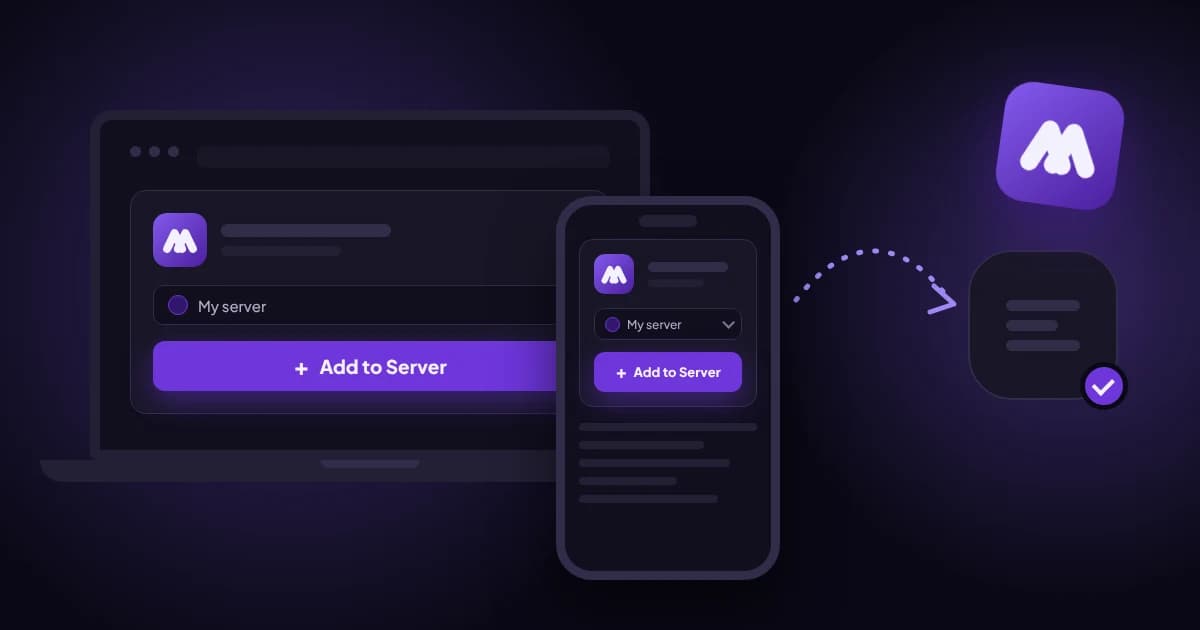
- Choose your server from the dropdown and click Continue. Only servers where you have Manage Server are listed.
- Review the permissions. You'll see a checklist. You can untick anything you don't want to grant. Just know the bot will quietly fail at whatever needed it: no Manage Roles means no level-up roles.
- Click Authorize. Discord may show a captcha. That's a normal anti-automation check, not a warning sign.
- Done. The bot appears in the member list, and Discord creates a dedicated role named after it. That role can't be given to anyone else.
How to add a bot to Discord on mobile
The flow is the same on iOS and Android. Only where you tap changes.
- Open the invite link in your phone's browser. If it opens in the Discord app instead, that works too: you'll get the same authorization screen.
- Sign in if asked, and keep your 2FA app handy if you use one.
- Pick the server, tap Continue, scroll through the permissions and tap Authorize.
- Solve the captcha if one appears.
- Go back to the Discord app, open the server and check the member list.
You can also add a bot straight from the app: tap it in any server's member list, open its profile and tap Add App.
How to check the bot is working
- Member list: the bot shows up with an APP tag.
- Commands: type
/in any text channel. The bot's commands should appear with its icon. - Integrations: Server Settings → Integrations lists the bot and its commands, and lets you limit them to specific roles or channels.
- Role order: in Server Settings → Roles, drag the bot's role above every role it should manage. A bot can't assign or remove a role that sits higher than its own. This is the number one reason auto-roles and level roles "don't work".
Example: adding MurFFy
Here's the same process with our own bot. MurFFy covers moderation, tickets, levels, economy and server stats, all set up from a web dashboard.
Option 1: the link. Go to murffy.xyz/l/add-bot, pick your server and click Authorize. The link asks for the specific permissions its modules use, such as managing roles, channels and messages, kicking, banning, timeouts, viewing the audit log and webhooks. It does not ask for Administrator. That's deliberate: a bot should only hold what it actually uses.
Option 2: from the dashboard. Sign in at murffy.xyz/dashboard with Discord and open the Add bot tab. It lists the servers where you have Manage Server. Click Add MurFFy to server next to the one you want. Discord opens with that server already selected, so you can't add it to the wrong one by accident.
What happens next. Right after it joins, MurFFy DMs the server owner a quick-start message with a button to the dashboard (if DMs are closed, it posts in the server's system channel instead). In the dashboard's Commands section you can switch off commands you don't need and restrict the rest to certain channels or roles. On the server, run /help to see what's available.
To be fair: if you want a music bot, MurFFy doesn't play music and doesn't pretend to. And if your server has run on MEE6 or Carl-bot for years, they have bigger communities and far more tutorials online. For a side-by-side look, see the best Discord bots in 2026.
How to tell if a bot is safe
A bot with broad permissions can ban everyone, delete channels or spam your members. Before you click Authorize, check:
- The URL. Authorization always happens on
discord.com/oauth2/authorize. A Discord lookalike on another domain asking for your password is phishing. - Permissions vs. features. A meme bot doesn't need Ban Members. A bot that wants Administrator "just in case" is a red flag.
- The app profile. Verified bots carry a verified badge. Discord requires verification once a bot passes 100 servers. Look for a privacy policy and terms of service too.
- Where the link came from. The official site, the bot's profile or Discord's App Directory, not a "free Nitro" message from a stranger.
- Signs of life. An active support server, recent updates, real documentation.
For the rest of your server's defences, read how to protect a Discord server from raids.
How to remove a bot from your server
- Desktop: right-click the bot in the member list and choose Kick, or go to Server Settings → Integrations, select the bot and remove it there.
- Mobile: tap the bot in the member list, open the menu (three dots) and tap Kick.
The bot's role disappears with it. Its settings usually stay on the developer's side: MurFFy keeps your configuration, so it's all there if you add the bot back.
Common mistakes
- "My server isn't in the list": you don't have Manage Server, or your browser is signed in to a different Discord account. Check who's logged in on discord.com.
- The bot joined but its commands don't show up: reload Discord (Ctrl+R on desktop, fully close and reopen the app on mobile). Then check Integrations to make sure the commands aren't disabled for @everyone.
- The bot can't assign roles: its role sits below the role it's trying to give.
- The bot can't post in a channel: that channel has permission overrides that block the bot's role.
- You picked "Add to My Apps" instead of a server: the bot won't be in your member list. Run the invite again and choose the server.
- Giving every bot Administrator: it works, until one compromised bot wipes your server.
Setting up a server from scratch? The Discord server setup checklist covers bots as one of ten steps.
FAQ
Is adding a bot to Discord free? Yes. Discord doesn't charge anything to add a bot. Some bots sell premium features, but the core is usually free.
Why can't I add a bot to my friend's server? You don't have Manage Server there. Ask the owner to add it, or to give you a role with that permission.
Can I add a bot to Discord on my phone? Yes. Open the invite link in your browser or the Discord app, choose the server and tap Authorize. The steps match the desktop flow.
How many bots can one server have? Discord does cap the number of bots per server, but a normal community server won't get near it. Two or three bots that don't overlap beat ten that do the same job.
Can a bot read my DMs? No. A bot only sees the server channels you give it access to and messages sent directly to the bot.
Want moderation, tickets, levels and economy in one bot, set up from a clean web dashboard? Add MurFFy to your server. It takes about a minute.